

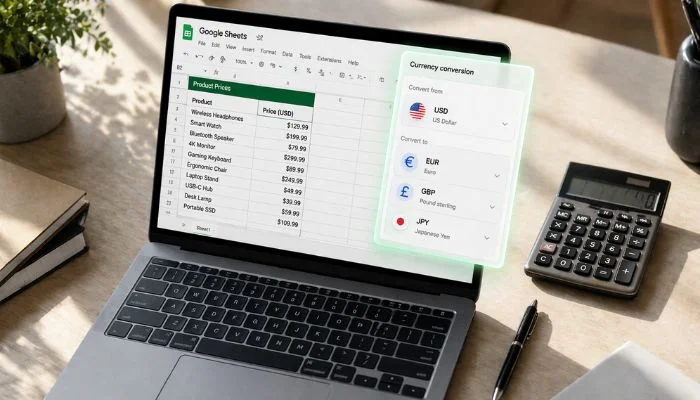
Working with prices in Google Sheets… and suddenly everything is in the wrong currency?
Maybe you’re creating an invoice, tracking expenses, or working with international clients.
And now you’re stuck thinking:
“How do I change this currency?”
Good news — it’s actually simple.
But there are different ways depending on what you want:
- Change currency for a few cells
- Change the default currency for the whole sheet
- Convert currency (like USD → EUR)
Let me break everything down step-by-step.
Key Takeaways
- You can change currency in Google Sheets by formatting selected cells using the “123” menu and choosing a new currency.
- To change the default currency, update the Locale in Spreadsheet settings, which controls how currency is applied across the sheet.
- Changing currency formatting only updates the symbol and display, not the actual value.
- To convert currency (like USD to EUR), use the GOOGLEFINANCE formula for real-time exchange rates.
- You can format currency further by adjusting symbol position, decimals, and display style using Custom currency settings.
- Adding or removing the dollar sign ($) is simply a formatting change and can be done from the toolbar or number format menu.
- Always remember:
Formatting = visual change
Conversion = actual value change
How to Change Currency in Google Sheets
Let’s start with the most common thing — changing currency.
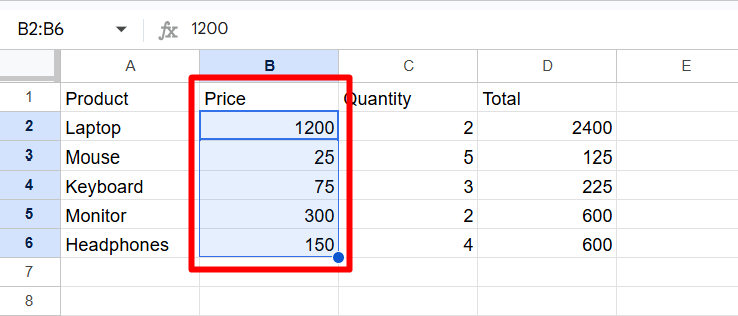
1. Select the cells you want to change
Click and drag over the cells where you want a different currency. This can be a single column, multiple cells, or the entire sheet.
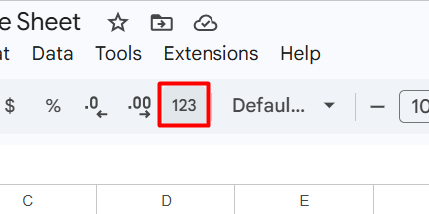
2. Click on the “123” format menu
Look at the toolbar at the top. Click on the “123” (Number format) option.
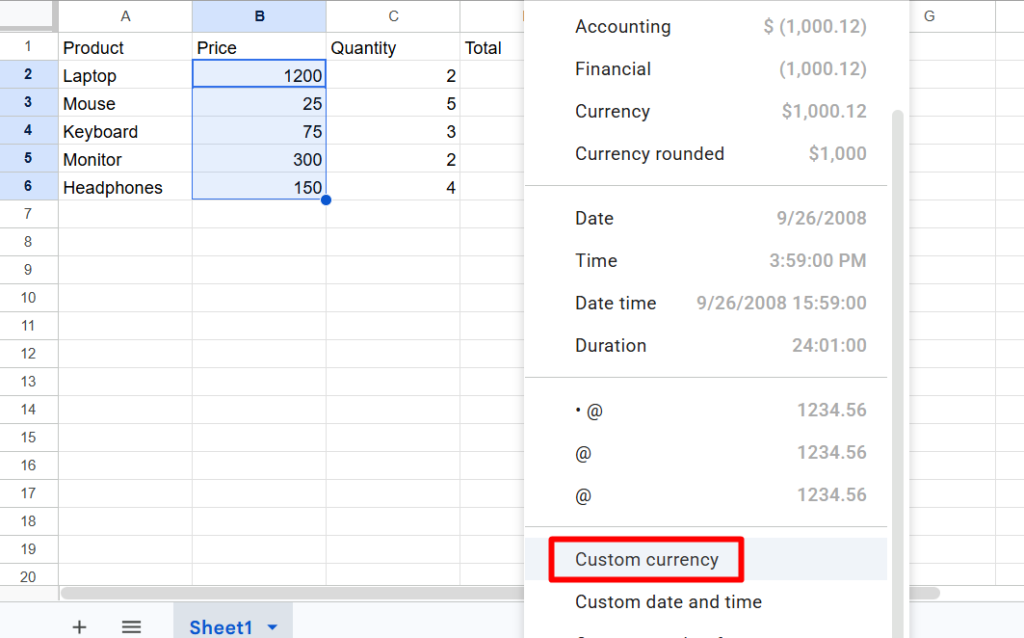
3. Click on “Custom currency”
Scroll down and click on Custom currency to see the full list.
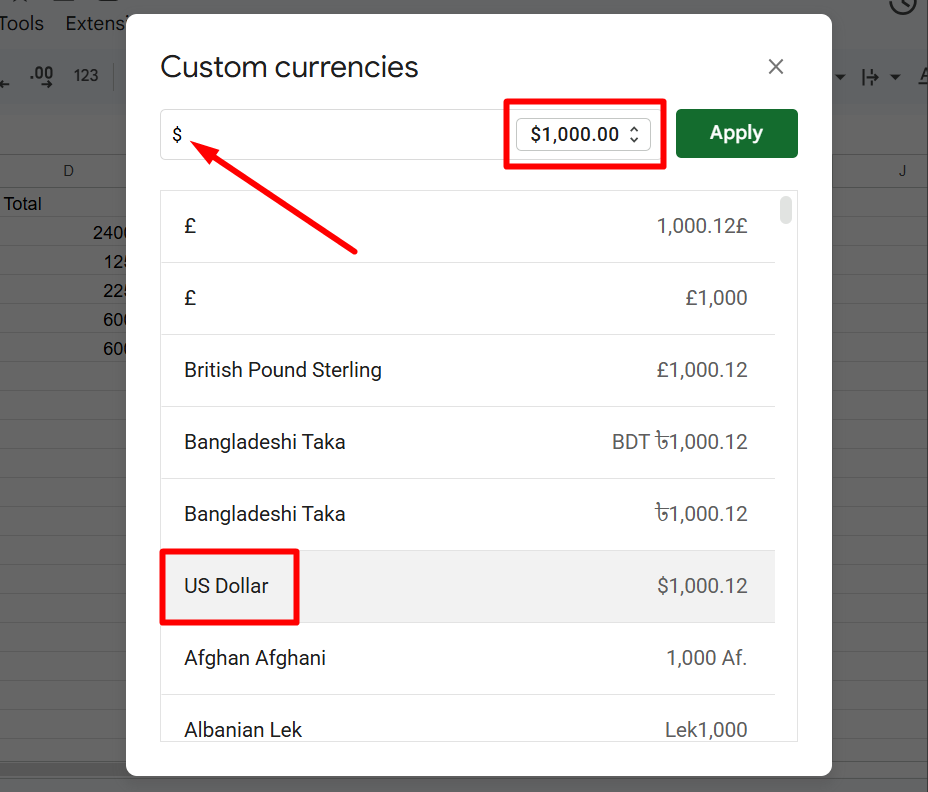
4. Choose your desired currency
Pick the currency you want (like USD, EUR, GBP). You can also adjust symbol position and decimals if needed.
5. Click “Apply”
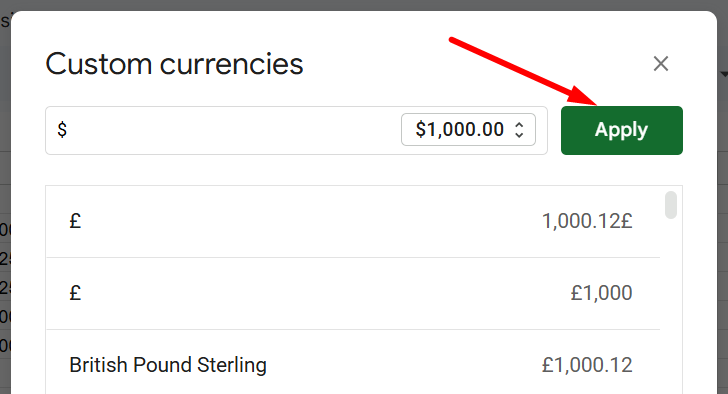
Once selected, click Apply. Your selected cells will now show the new currency.
How to Change Default Currency (entire sheet)
If you want every new value to follow a currency:
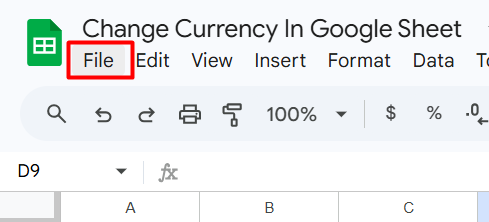
1. Click on “File”
Go to the top menu and click File.
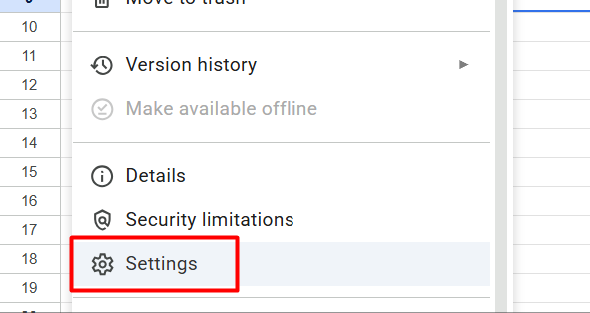
2. Click on “Settings”
A dropdown menu will appear. Scroll down and click on settings.
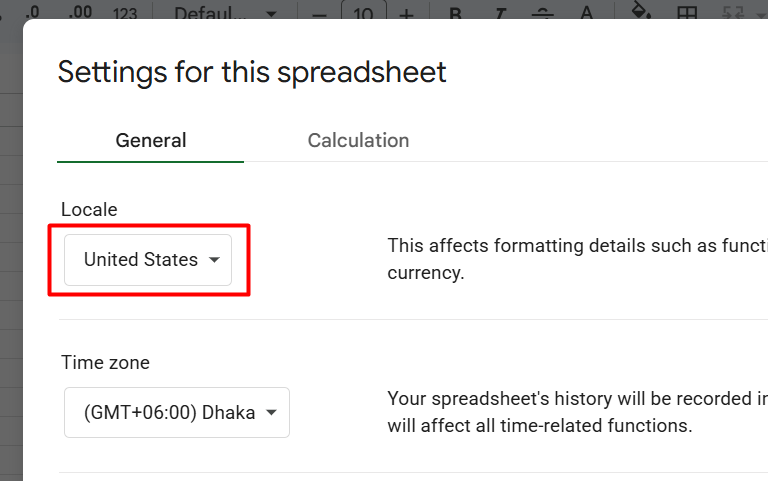
3. Change the Locale
Select your country. For example:
- United States → USD
- Germany → Euro
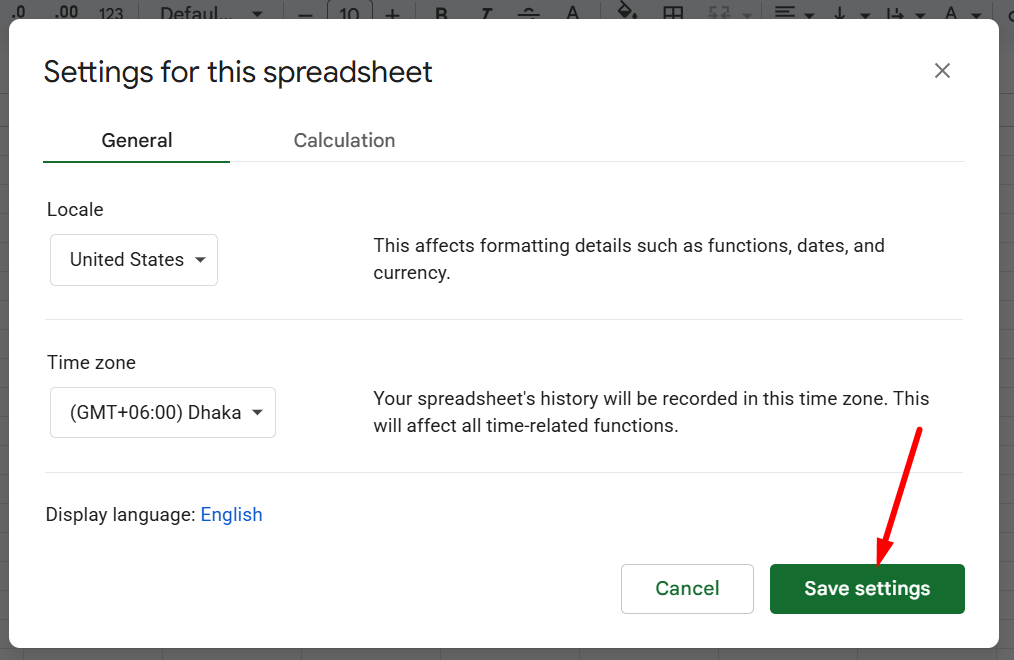
4. Click “Save settings”
Your sheet will refresh and the default currency will change.
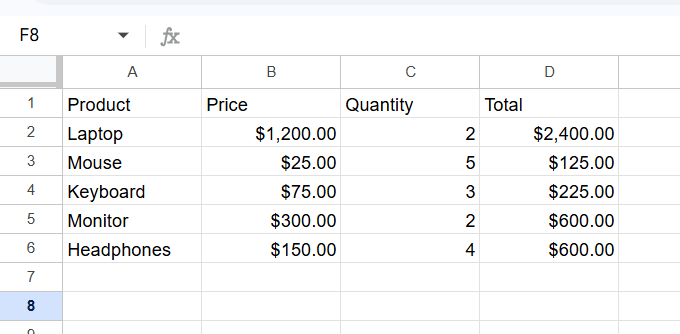
Now every new number you format as currency will follow this setting.
📖You May Also Like This “Google Sheet” Article: How to Make a Progress Bar in Google Sheets
How to Convert Currency in Google Sheets
Changing currency is one thing.
But what if you want to convert currency automatically?
Example:
- USD → EUR
- GBP → USD
Use this formula:
=GOOGLEFINANCE(“CURRENCY:USDEUR”)
This gives you the live exchange rate.
Example:
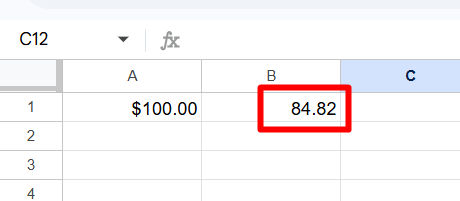
If A1 = 100 (USD)
In another cell:
=A1 * GOOGLEFINANCE(“CURRENCY:USDEUR”)
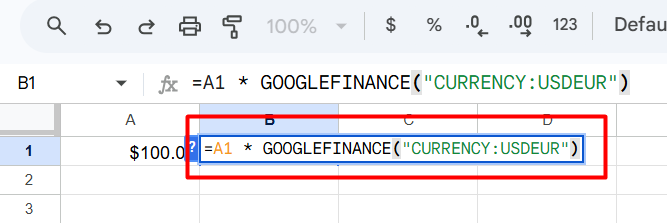
This will convert USD to EUR automatically.
This is useful for:
- Pricing sheets
- International sales
- Financial tracking
How to Format Currency in Google Sheets
Sometimes the currency is correct… but it doesn’t look right.
You might want to:
- Change symbol position
- Adjust decimal places
- Customize display
1. Select your cells
Choose the cells you want to format.
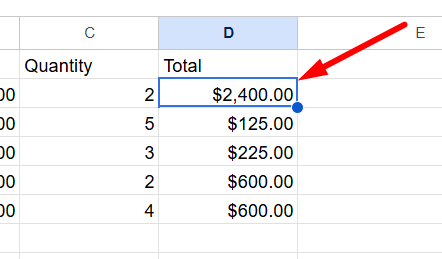
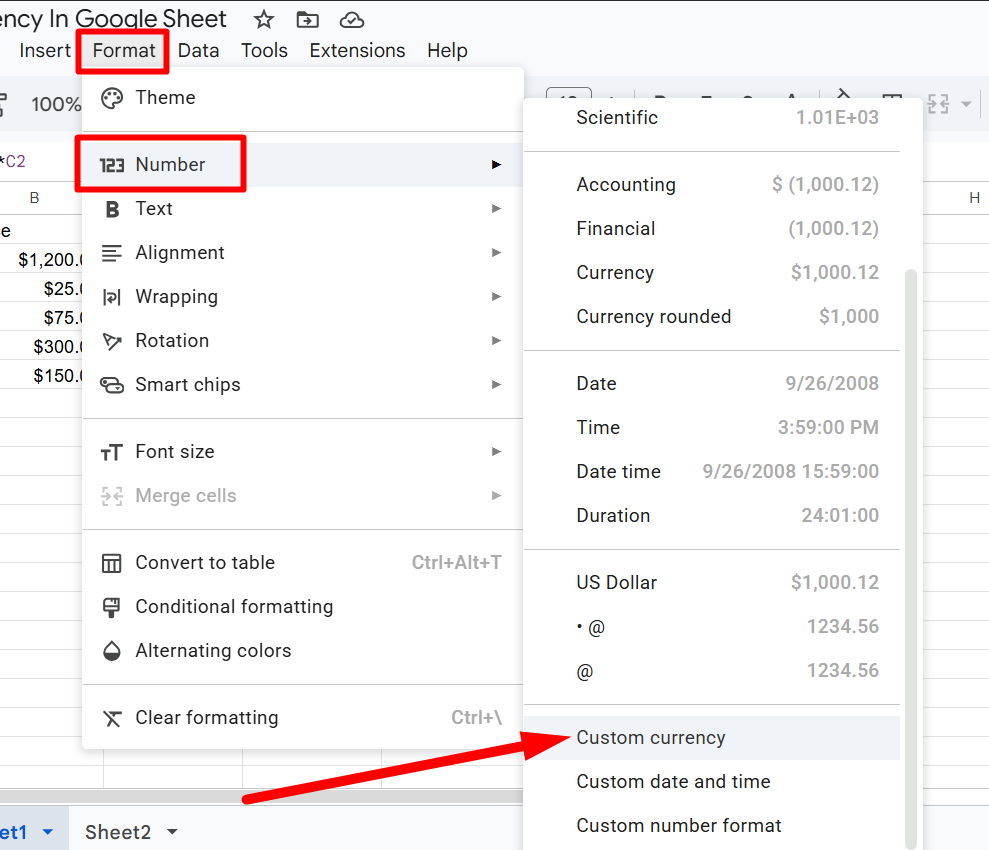
2. Go to Format → Number → Custom Currency
Click Format from the top menu, then Number, then Custom currency.
3. Customize your currency format
You can:
- Change symbol placement
- Adjust decimals
- Choose different styles
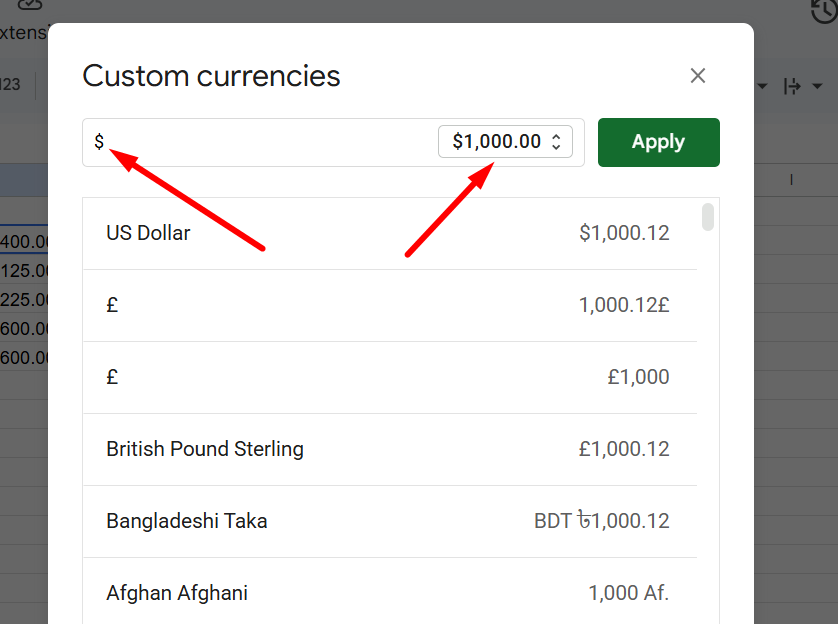
4. Click “Apply”
Click on ‘Apply’, your formatting will update instantly.
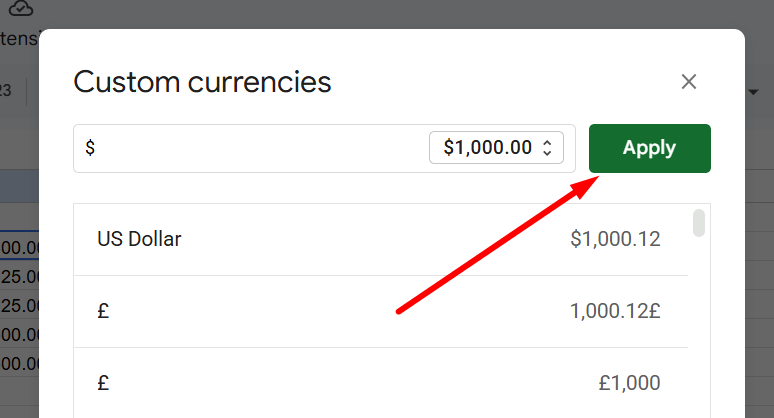
This is purely visual — it doesn’t change the value.
📖You May Also Like This “Google Sheet” Article: How to Group Sheets (Tabs) in Google Sheets
How to Add A Dollar Sign in Google Sheets
Need to add a dollar sign quickly?
1. Select the cells
Highlight the cells where you want the dollar symbol.
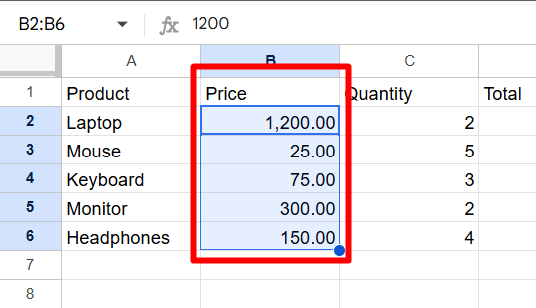
2. Click the “$” icon in the toolbar
This instantly formats the values as USD.
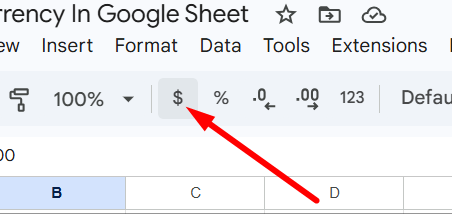
This is the fastest way to apply currency formatting.
How to Get rid of the Dollar sign in Google Sheets
Added it by mistake? No problem.
1. Select the cells
Choose the cells with the dollar sign.
2. Click on “123” format menu
Open the number formatting options.
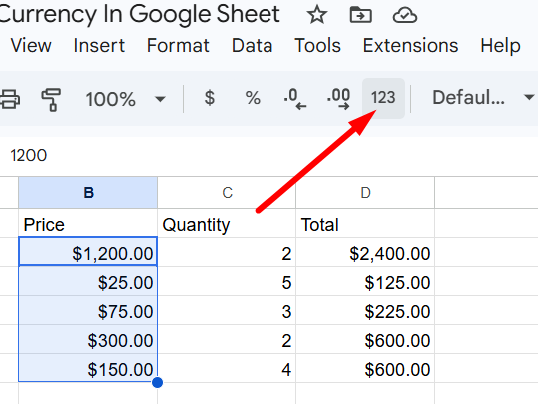
3. Select “Number” or “Plain text”
This will remove the currency format and return it to normal numbers.
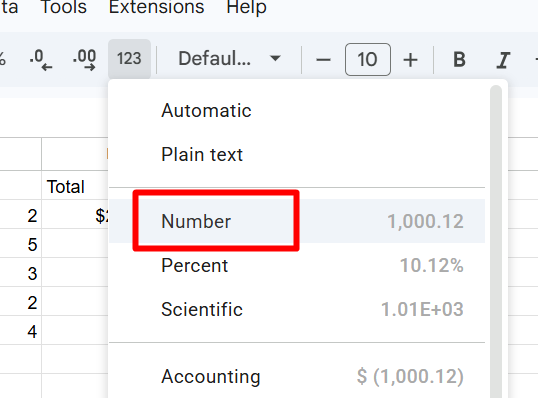
This will remove the dollar sign completely
How to Change Dollar to Euro in Google Sheet
This is a very common use case.
You have USD… but need EUR.
Option 1: Just change the format
Follow the earlier steps:
- Select cells
- Go to Custom Currency
- Choose Euro
This only changes the symbol (not the value)
Option 2: Convert the actual value
Use:
=A1 * GOOGLEFINANCE(“CURRENCY:USDEUR”)
This converts the actual amount from USD to EUR.
Always remember:
- Formatting = visual change
- Conversion = actual value change
Final Thoughts
If you’re working with money in Google Sheets, this is something you’ll use often.
Quick summary:
- Change currency → use formatting
- Set default → change locale
- Convert currency → use GOOGLEFINANCE
- Add/remove symbols → toolbar or format menu
Once you understand the difference, everything becomes much easier.