


You’re trying to group sheets in Google Sheets, but things get messy once you have too many tabs.
You look for a grouping option like Excel… but it’s not there.
Here’s the reality: Google Sheets doesn’t support grouping tabs.
But you still have simple ways to organize them so they feel grouped and easy to manage.
In this guide, you’ll learn how to organize your tabs using smart naming and color coding so you can find anything faster and keep your sheet clean.
Key Takeaways
- Google Sheets doesn’t have a built-in feature to group tabs like Excel.
- You can’t create permanent groups, folders, or collapsible sections for sheets.
- The easiest way to “group” sheets is by using clear and consistent naming (like Sales_Jan, Sales_Feb).
- Naming sheets properly helps you organize and locate tabs faster, especially in large files.
- You can also use tab colors to visually group related sheets (like Sales in blue, Finance in green).
- Combining naming + color coding gives you the closest practical solution to grouping in Google Sheets.
- These methods don’t change how Sheets works, but they make your spreadsheet much easier to manage and navigate.
Can You Group Sheets (Tabs) in Google Sheets
No, there isn’t any built-in feature in Google Sheets to group tabs like you can in Excel.
You can’t:
- Create collapsible groups
- Combine tabs into folders
- Permanently group sheets
But…
There are simple workarounds that work really well in real-life use:
- Naming sheets properly
- Coloring tabs to visually group them
These don’t “group” sheets technically, but they make your file much easier to manage.
📖 You May Also Like This “Google Sheet” Article: How to Make a Progress Bar in Google Sheets
How to Group Sheets (Tabs) in Google Sheets
Method 1: Use Consistent Sheet Naming (Best Practice)
If your sheet names are messy, grouping becomes impossible.
But when you name them properly, they automatically feel grouped.
Example:
Instead of this:
- Sheet1
- Sheet2
- Sheet3
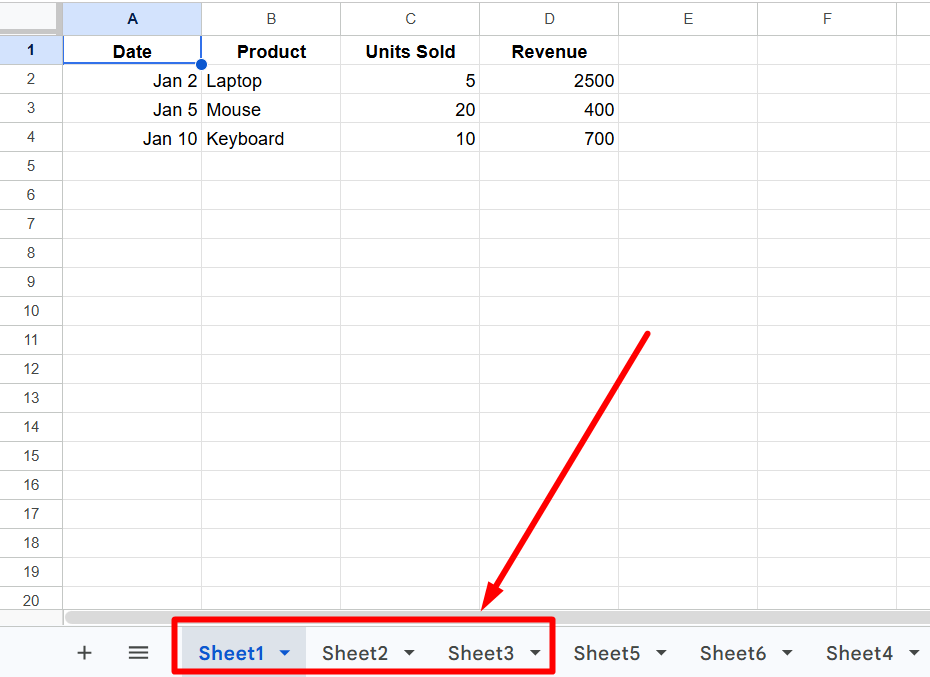
Use this:
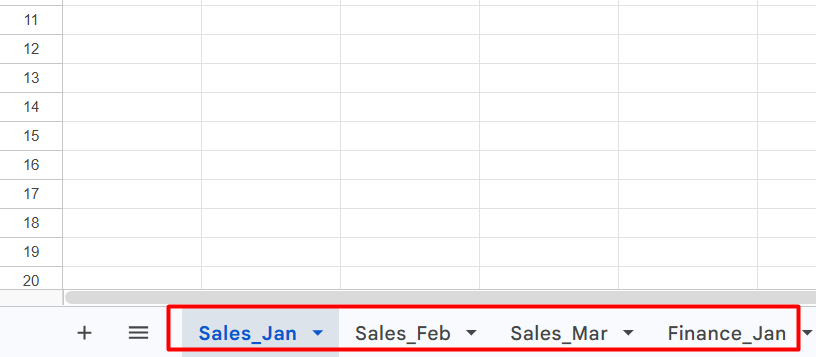
- Sales_Jan
- Sales_Feb
- Sales_Mar
- Finance_Jan
- Finance_Feb
Steps to do it:
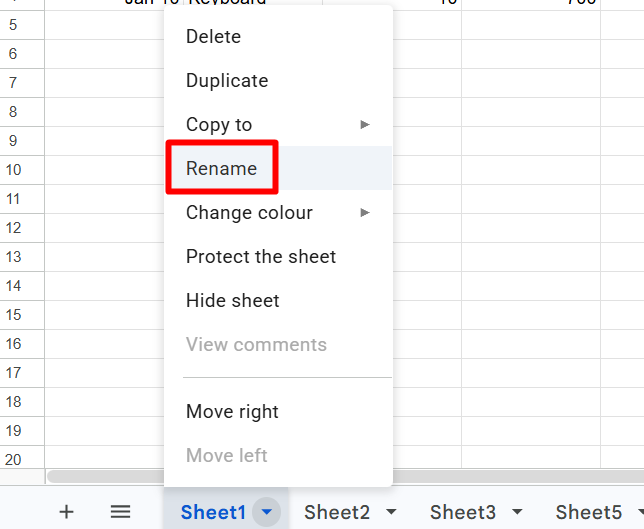
1. Right-click on any sheet tab at the bottom
2. Click on “Rename”
3. Type a clear, structured name (like Sales_Jan)
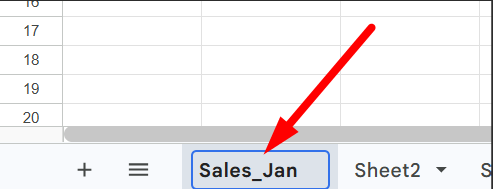
4. Press Enter to save
Or
Simply double-click on the tab name to select it.
Then type the structured name.
Press Enter.
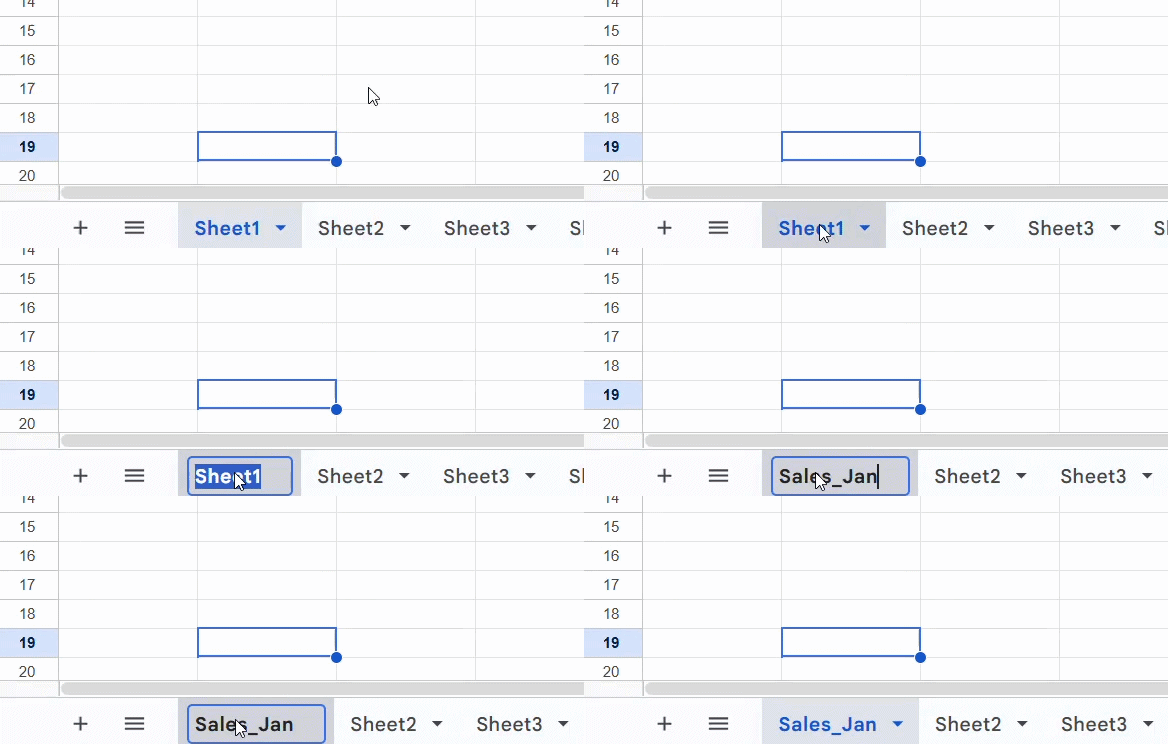
Now your brain instantly groups them.
Pro Tip (This Is What Actually Works)
Use a pattern:
- Category + Month → Sales_Jan
- Department + Data → Marketing_Leads
- Project + Version → Website_V1
When you scroll tabs, they automatically stay grouped together.
📖 You May Also Like This “Google Sheet” Article: How to Change Currency in Google Sheets?
Method 2: Use Color Coding for Visual Grouping
If naming organizes logically, colors organize visually.
This is the fastest way to ‘see’ groups in your sheet.
Example:
- All Sales sheets → Yellow
- All Finance sheets → Orange
- All Reports → Green
Steps to Color Code Sheet Tabs
1. Right-click on a sheet tab
2. Click on “Change color”
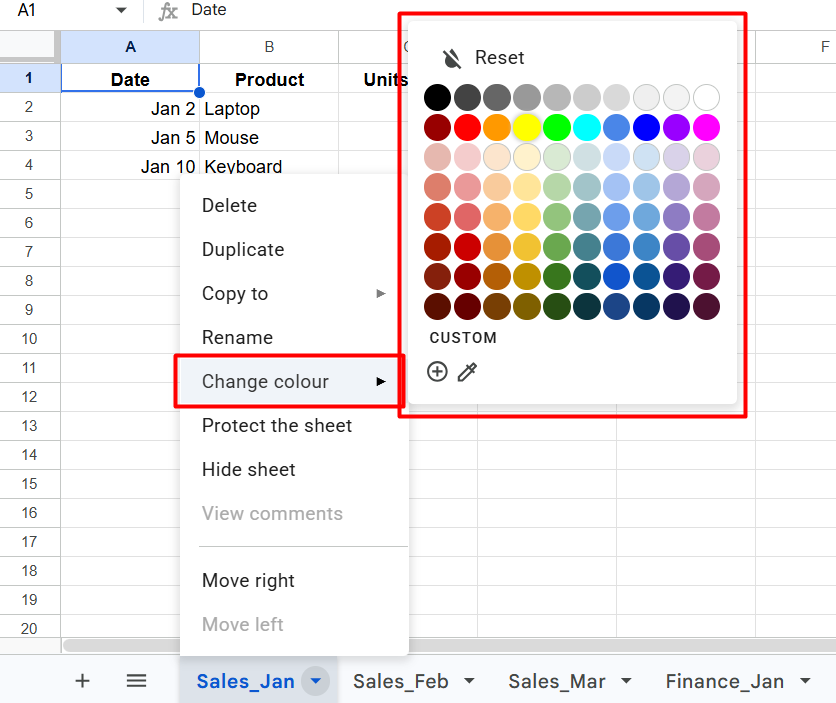
Select a color. It will color the tab.
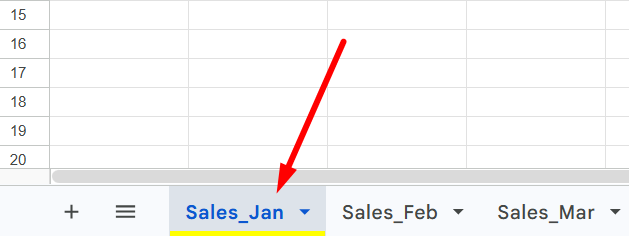
Repeat for similar sheets using the same color.
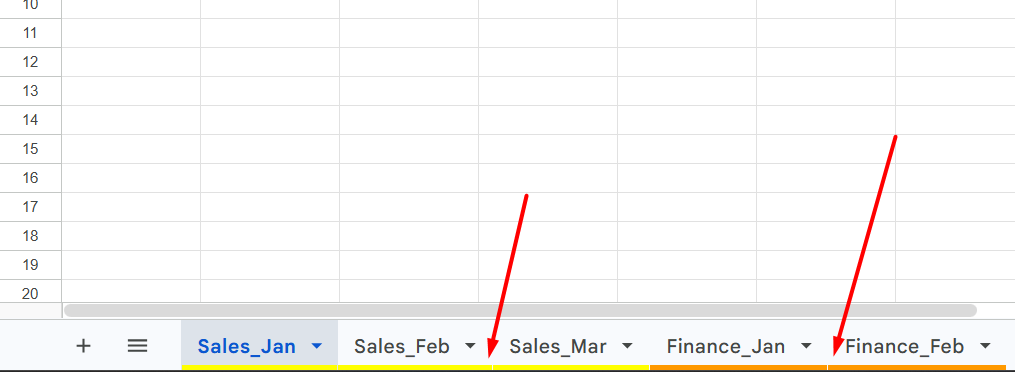
Now, even with 20 tabs, you can instantly find what you need.
What This Fixes Immediately
- You stop wasting time searching tabs
- Your sheet looks clean and structured
- Anyone else can understand your file quickly
Simple Setup You Can Copy
If you’re managing a business sheet, try this:
- Yellow → Sales
- Orange → Finance
- Green → Marketing
- Purple → Reports
Combine this with naming, and your sheet becomes super easy to use.
Conclusion
- Google Sheets doesn’t support grouping tabs
- You can’t create real groups like Excel
- But you can organize sheets using:
- Clear naming
- Color coding
These two methods together give you the same practical result.
If your sheet is growing fast, start with naming first, then add colors.
That alone will fix 90% of your “messy tabs” problem.