

You can print a Google Form directly from the form editor. This is useful when you need a paper copy of a survey, questionnaire, quiz, registration form, or any other form you created in Google Forms.
Steps:
- Open your Google Form
- Click the three-dot (⋮) menu
- Click Print
- Choose Your Printer
- Check the Print Preview
- Print the Form
Step 1: Open Your Google Form
Go to Google Forms and open the form you want to print. Make sure you are viewing the form in edit mode.
Step 2: Click the three-dot (⋮) menu
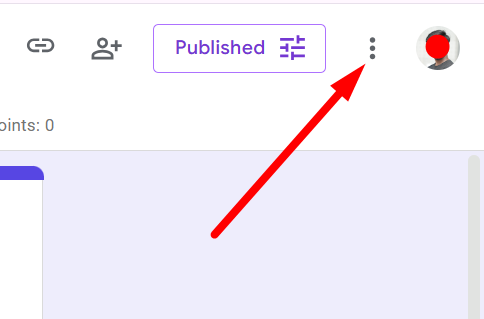
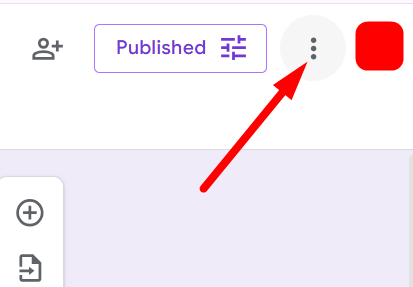
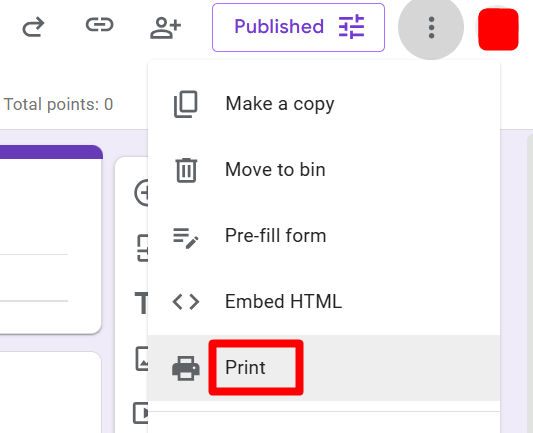
Click the three-dot icon in the upper-right corner of the Google Forms editor.
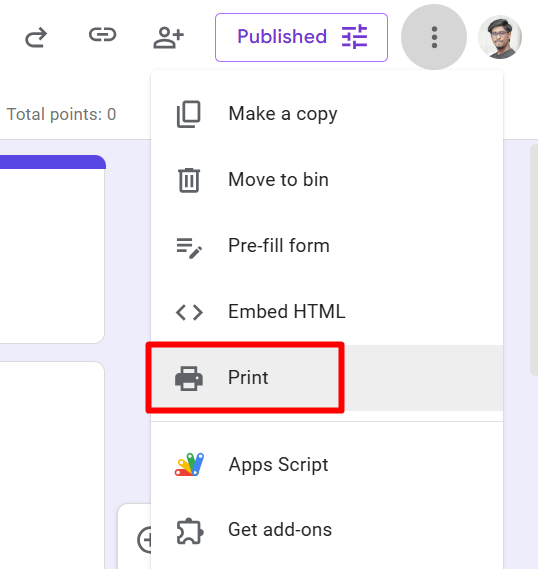
A dropdown menu will appear. Click Print.
Step 3: Choose Your Printer
Your browser’s print window will now open. Under Destination or Printer, select the physical printer you want to use.
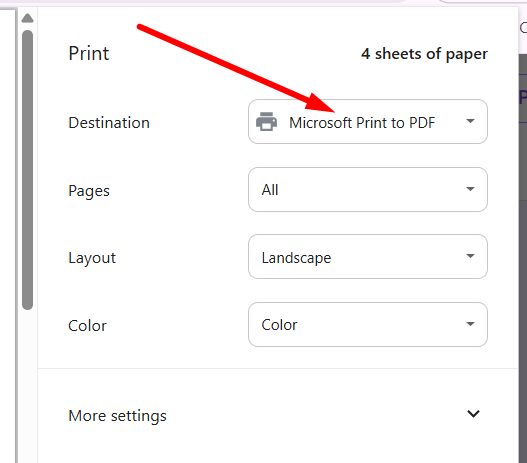
You can also choose how many copies you need, which pages to print, and whether you want the page in portrait or landscape orientation.
Step 4: Check the Print Preview
Before printing, check the preview on the left side of the print window. Google Forms may spread longer forms across several pages, especially if your form contains images, long questions, or multiple sections.
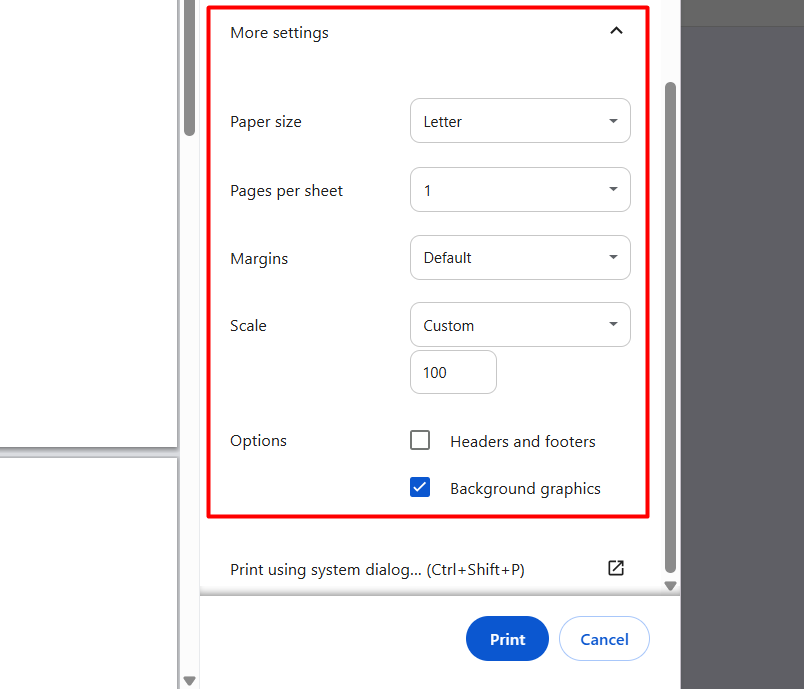
If needed, open More settings to adjust options such as paper size, margins, pages per sheet, or scale.
Step 5: Print the Form
Once everything looks correct, click Print.
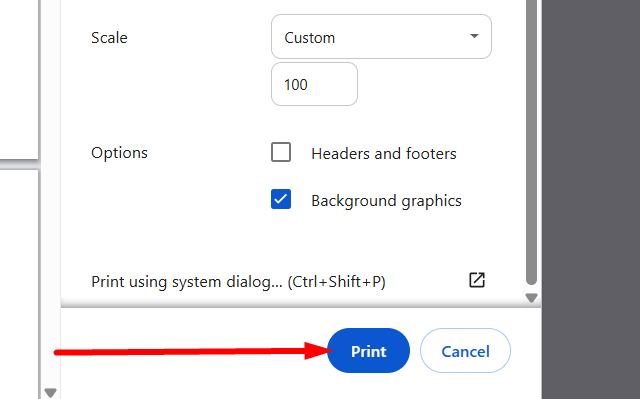
Your printer will print a blank copy of the Google Form with the questions and answer fields ready to be completed on paper.
Quick Tip: You can also press Ctrl + P on Windows or Command + P on Mac while working in Google Forms to open the print window.
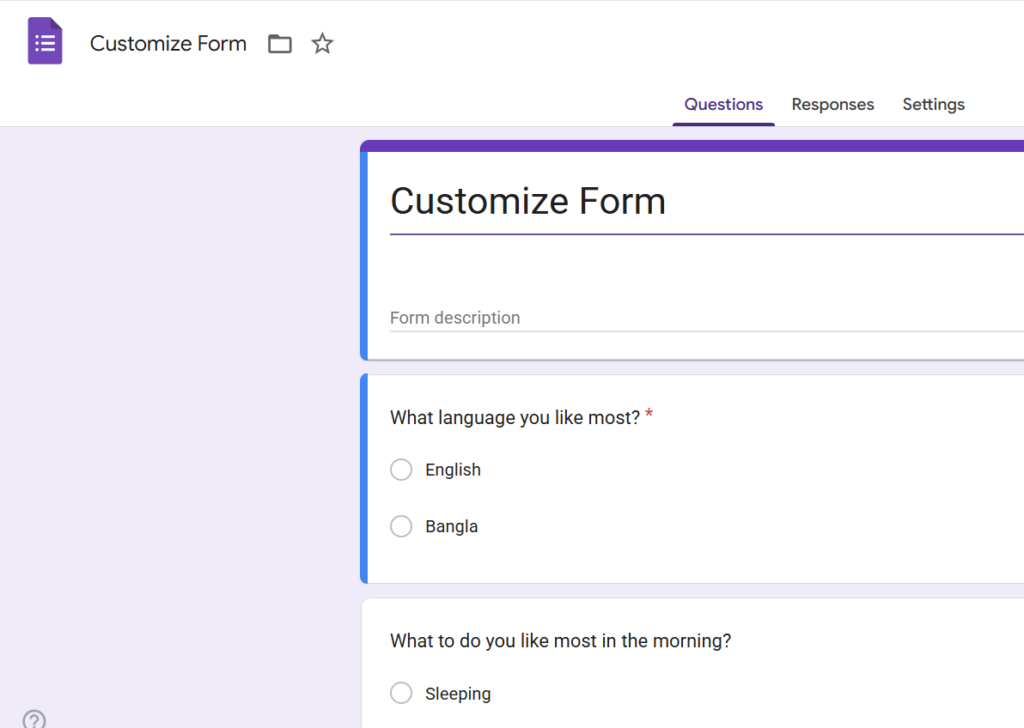
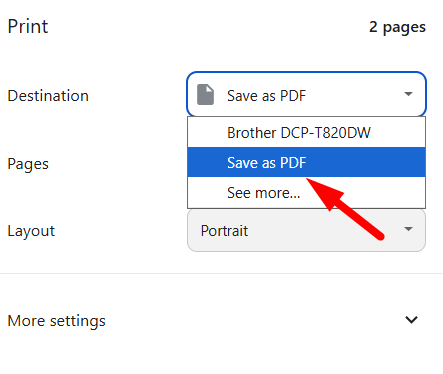
Sometimes you don’t want the full layout, just the questions.
Here’s a simple workaround:
- Open your form
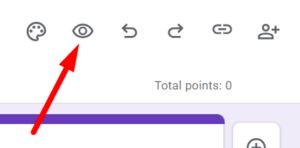
- Click the preview (eye icon)
- Use Ctrl + P
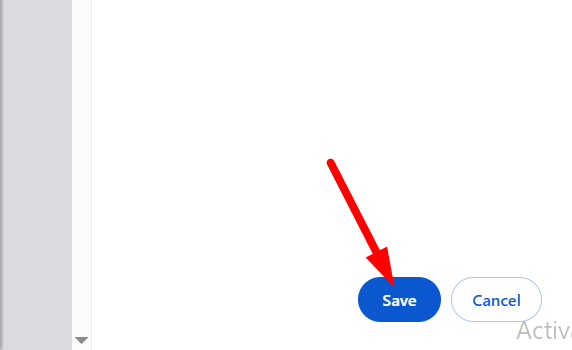
- Save as PDF
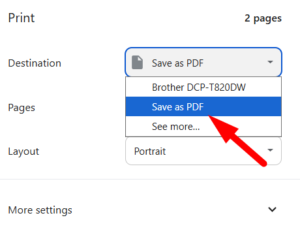
This gives you a cleaner version of the questions without edit clutter.
Now, let’s say people have already submitted responses.
You probably want to print those.
Steps:
- Open your form
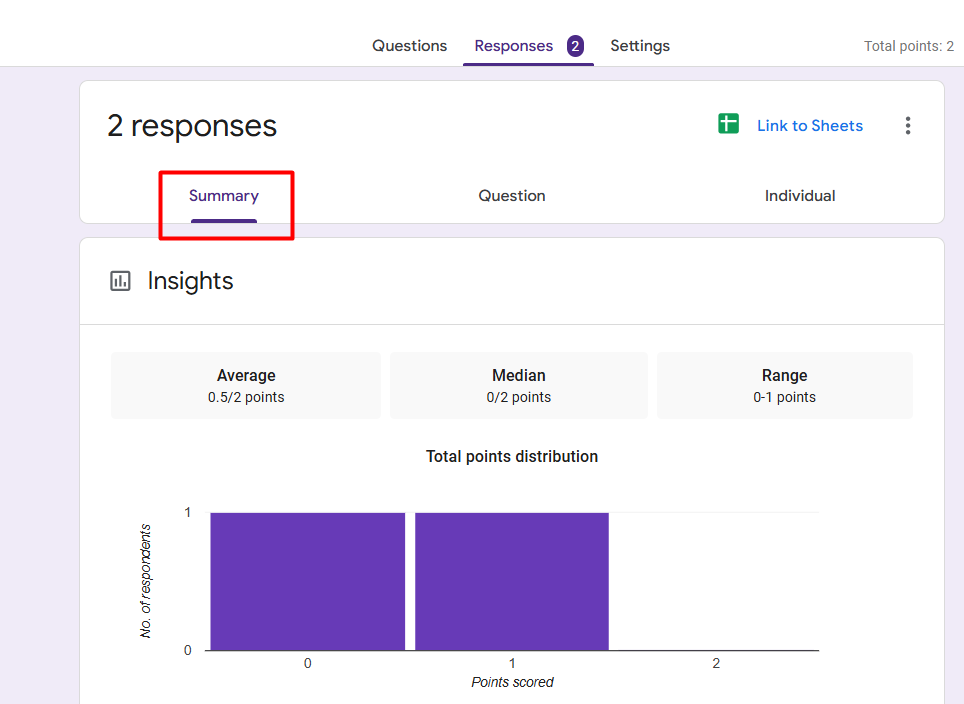
- Go to the Responses tab
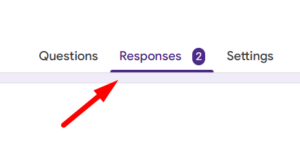
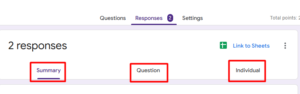
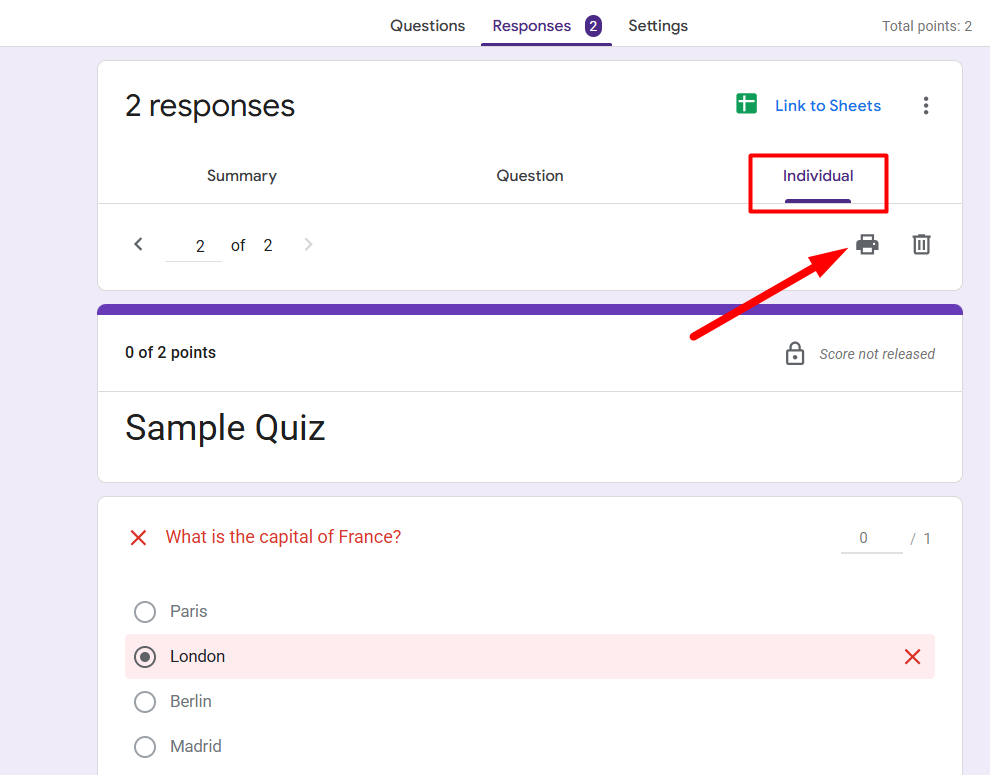
- Choose how you want to view responses
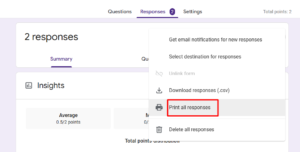
- Now print it
If your form is a quiz, you can print the answer key too.
Steps:
- Open your form
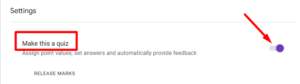
- Go to Settings → Make this a quiz (if not already)
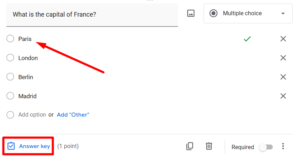
- Click each question to view correct answers
- Use print (Ctrl + P)
Note: Google Forms doesn’t give a perfect “answer key layout”, but you can still print it for reference.
📖 You May Also Like This “Google Form” Article: Email Notifications for Google Forms (Set It Up in 2 Minutes)
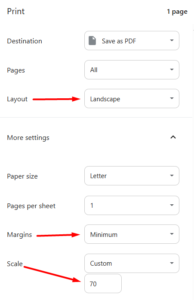
Sometimes printing spreads your form across too many pages.
Here’s how to fix it:
Option 1: Adjust Print Settings
- Scale → Set to 70–80%
- Layout → Landscape
- Margins → Minimum
Option 2: Shorten Questions
- Reduce long descriptions
- Avoid large paragraph fields
Option 3: Use PDF First
Save as PDF → Then print with custom settings.
This helps avoid wasting paper and keeps things compact.