Yes, you can Print out a Google Form. It’s just not where most people expect it to be.
In this guide, you’ll learn how to print:
- A blank form
- Form questions
- Responses
- Summary reports
Follow the steps below based on what you need.
Key takeaways
- You can print a Google Form directly from the editor by opening the three-dot menu, selecting Print, choosing your printer, and checking the print preview.
- To save the form instead of printing it on paper, select Save as PDF as the destination and click Save.
- Google Forms lets you print different content, including a blank form, form questions, submitted responses, response summaries, and individual submissions.
- For submitted data, use the Responses tab to print all responses, view summary charts, or select and print one individual response.
- If your form takes up too many pages, adjust the scale, layout, and margins in the print settings to make the output more compact.
- Google Forms does not create a perfect answer-key layout, but quiz answers can still be viewed and printed for reference.
How to Print Google Form
You can print a Google Form directly from the form editor. This is useful when you need a paper copy of a survey, questionnaire, quiz, registration form, or any other form you created in Google Forms.
Steps:
- Open your Google Form
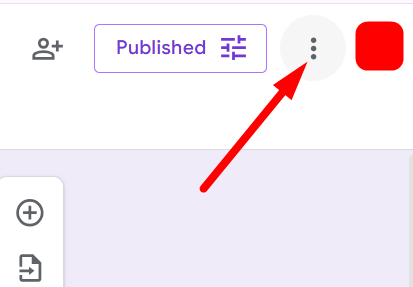
- Click the three-dot (⋮) menu
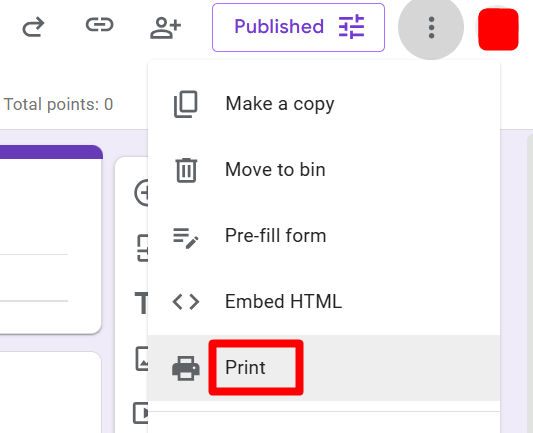
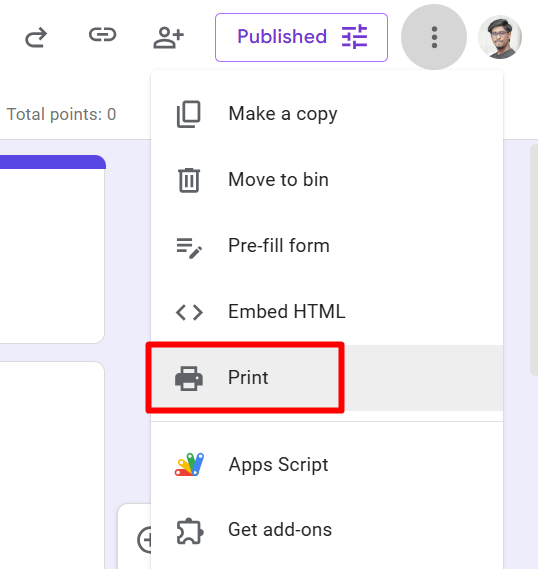
- Click Print
- Choose Your Printer
- Check the Print Preview
- Print the Form
Step 1: Open Your Google Form
Go to Google Forms and open the form you want to print. Make sure you are viewing the form in edit mode.
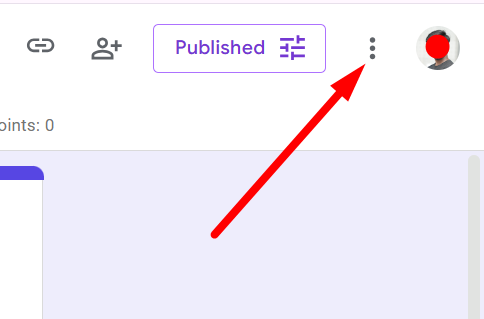
Step 2: Click the three-dot (⋮) menu
Click the three-dot icon in the upper-right corner of the Google Forms editor.
A dropdown menu will appear. Click Print.
Step 3: Choose Your Printer
Your browser’s print window will now open. Under Destination or Printer, select the physical printer you want to use.
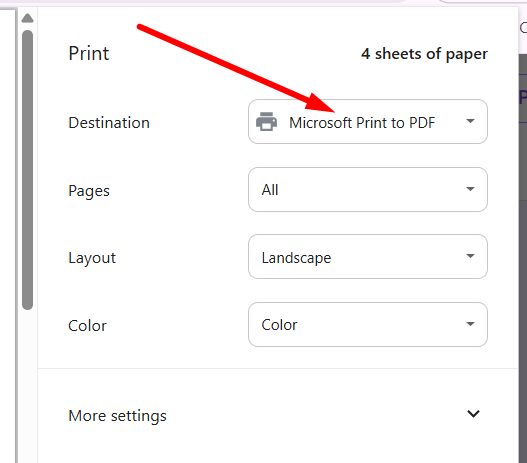
You can also choose how many copies you need, which pages to print, and whether you want the page in portrait or landscape orientation.
Step 4: Check the Print Preview
Before printing, check the preview on the left side of the print window. Google Forms may spread longer forms across several pages, especially if your form contains images, long questions, or multiple sections.
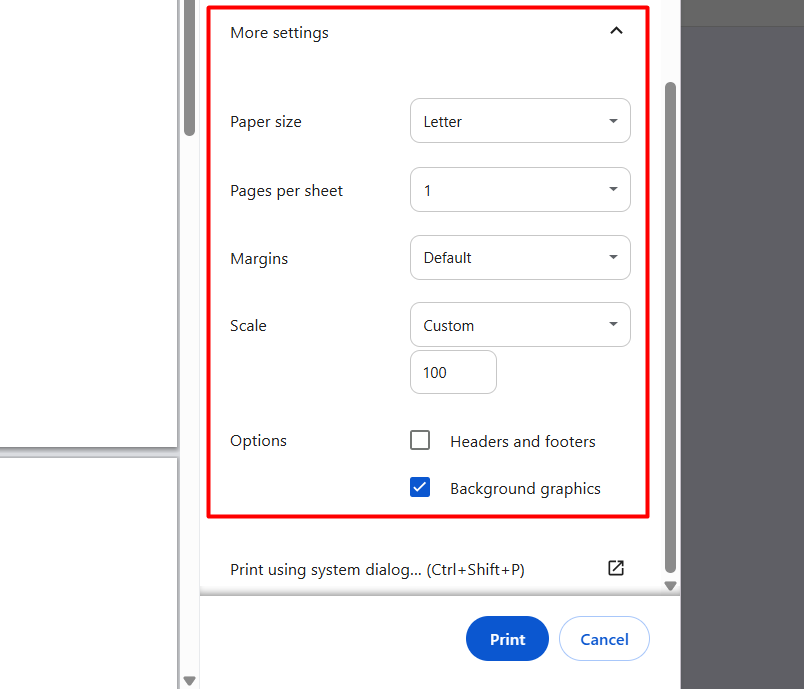
If needed, open More settings to adjust options such as paper size, margins, pages per sheet, or scale.
Step 5: Print the Form
Once everything looks correct, click Print.
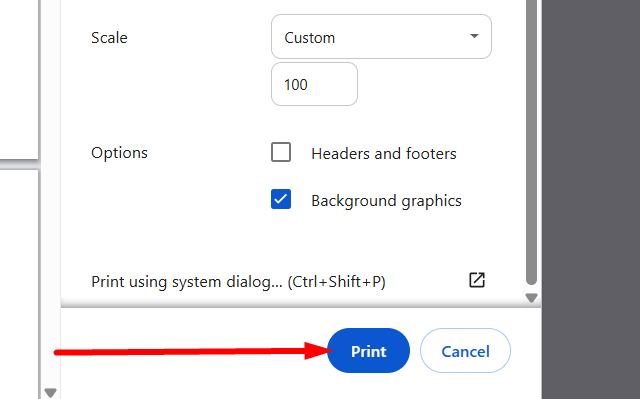
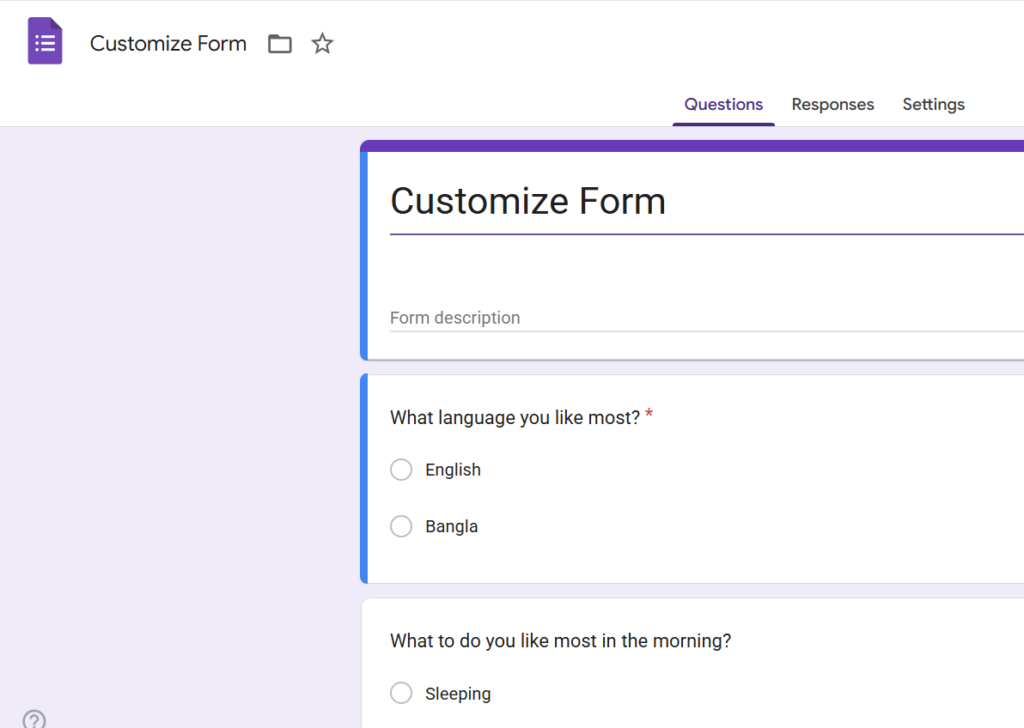
Your printer will print a blank copy of the Google Form with the questions and answer fields ready to be completed on paper.
Quick Tip: You can also press Ctrl + P on Windows or Command + P on Mac while working in Google Forms to open the print window.
How to Print Google Form as PDF
Steps:
- Open your Google Form
- Click the three-dot (⋮) menu (top-right)
- Click Print
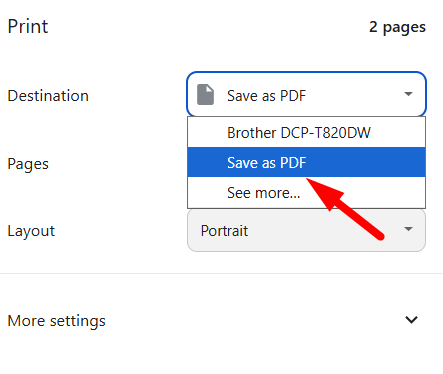
- Change destination to Save as PDF
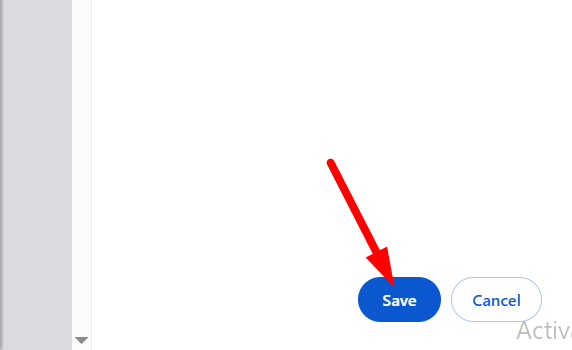
- Click Save
Step 1: Open your Google Form
Go to the form you want to print.
Step 2: Click the three-dot (⋮) menu
Click on the three-dot (⋮) menu at the top-right corner of the form.
Step 3: Click “Print”
A dropdown menu will be appear. Click on the “Print” button.
This opens the browser print preview.
Step 4: Select “Save as PDF”
In the destination dropdown, choose Save as PDF.
Step 5: Click Save
Then click on ‘Save’. Your form will download as a clean PDF file.
📖 You May Also Like This “Google Form” Article: How to See Google Forms You Submitted (5 Easy Ways)
How to Print a Google Form Survey
If you’re handing out a survey offline, this is exactly what you need.
The same method above applies, but here’s what to expect:
- Questions are spaced out for writing
- Multiple choice options are clearly listed
- Long answer questions take more space
Example: If you’re collecting feedback at an event, print 20–30 copies and distribute them.
How Do You Print Google Form Questions Only
Sometimes you don’t want the full layout, just the questions.
Here’s a simple workaround:
- Open your form
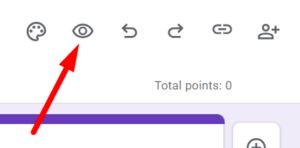
- Click the preview (eye icon)
- Use Ctrl + P
- Save as PDF
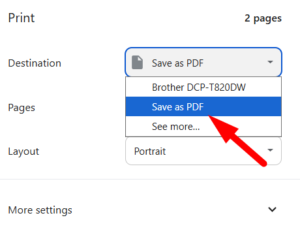
This gives you a cleaner version of the questions without edit clutter.
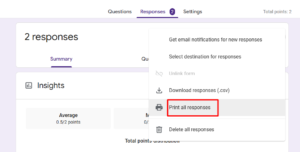
How to Print Google Form Responses
Now, let’s say people have already submitted responses.
You probably want to print those.
Steps:
- Open your form
- Go to the Responses tab
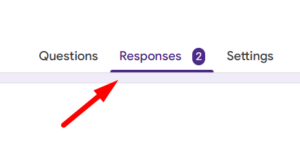
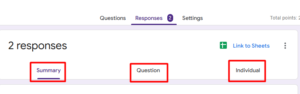
- Choose how you want to view responses
- Now print it
How to Print a Summary of Responses in Google Forms
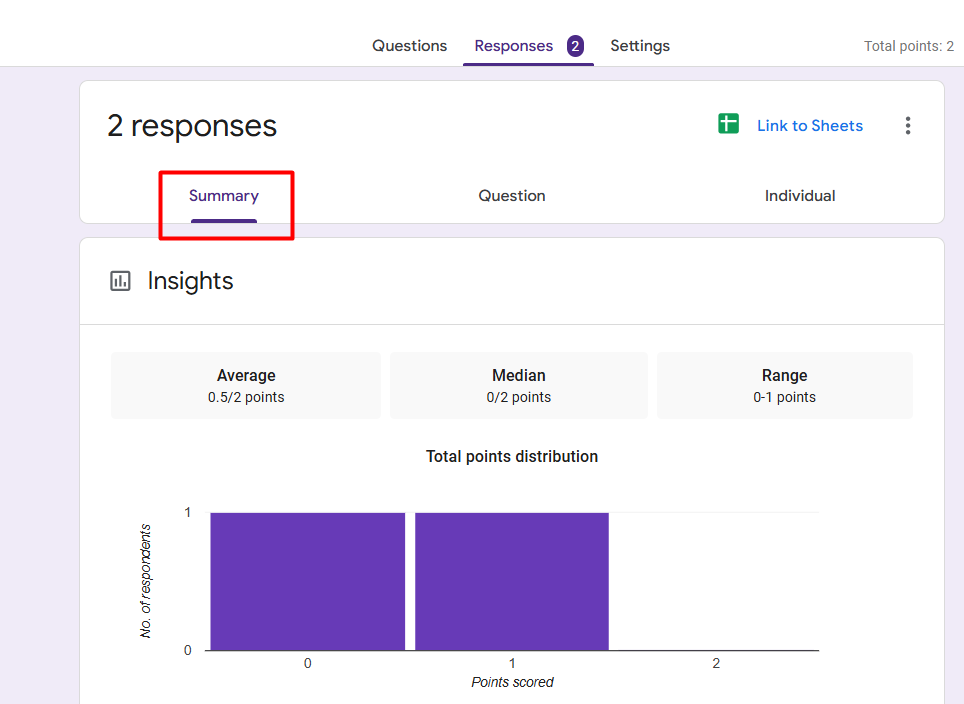
This is useful when you want charts and stats.
Steps:
- Go to Responses
- Stay on the Summary tab
- Press Ctrl + P
- Save or print
You’ll get:
- Charts
- Graphs
- Overall data
Perfect for reports or presentations.
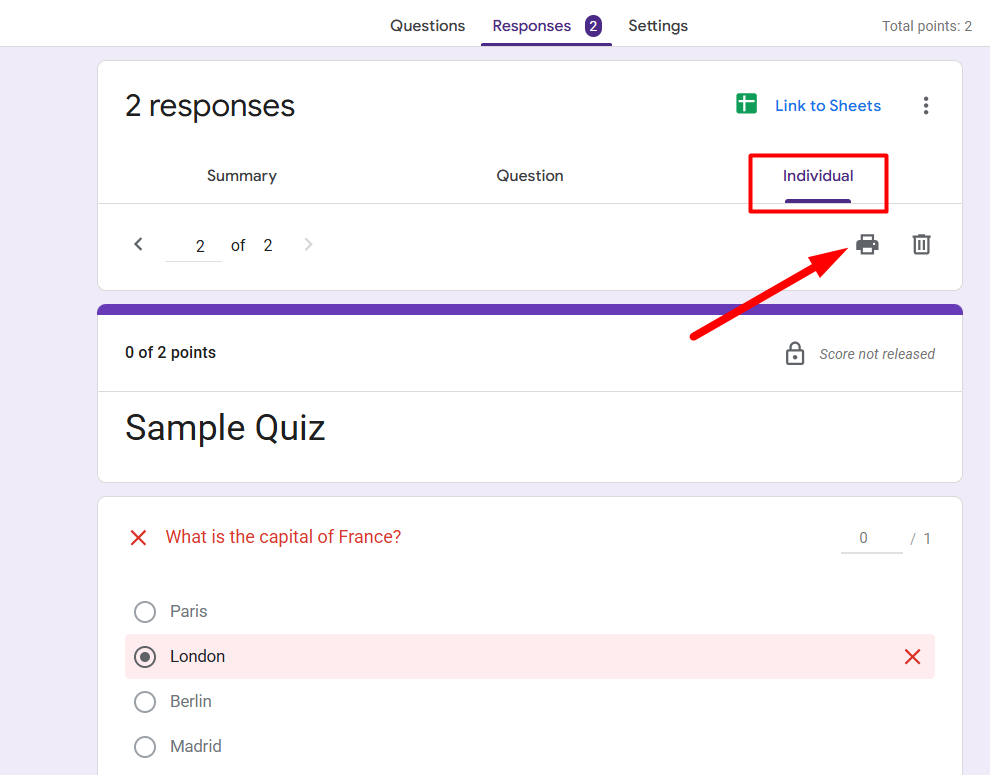
How Do You Print Google Forms Individual Responses
If you only need one person’s response:
Steps:
- Go to Responses
- Click Individual
- Use arrows to select a response
Click the print icon
This is helpful for:
- Reviewing specific entries
- Sharing one submission
- Record keeping
How Do You Print an Answer Key on a Google Form
If your form is a quiz, you can print the answer key too.
Steps:
- Open your form
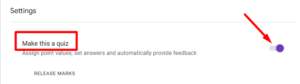
- Go to Settings → Make this a quiz (if not already)
- Click each question to view correct answers
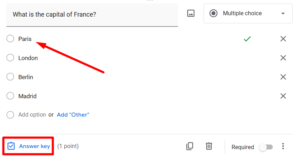
- Use print (Ctrl + P)
Note: Google Forms doesn’t give a perfect “answer key layout”, but you can still print it for reference.
📖 You May Also Like This “Google Form” Article: Email Notifications for Google Forms (Set It Up in 2 Minutes)
How Do You Print a Google Form on One Page
Sometimes printing spreads your form across too many pages.
Here’s how to fix it:
Option 1: Adjust Print Settings
- Scale → Set to 70–80%
- Layout → Landscape
- Margins → Minimum
Option 2: Shorten Questions
- Reduce long descriptions
- Avoid large paragraph fields
Option 3: Use PDF First
Save as PDF → Then print with custom settings.
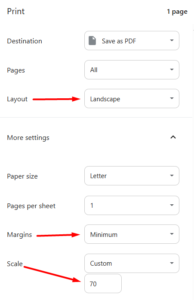
This helps avoid wasting paper and keeps things compact.
Quick Checklist (Use This Before Printing)
If your Google Form isn’t printing the way you expect, run through this first:
- Did you open the form in edit mode or preview mode?
- Did you click the three-dot (⋮) menu → Print?
- Did you try Ctrl + P as a shortcut?
- Did you select Save as PDF in the destination?
- Are your margins set to Minimum?
- Is your scale too large (causing extra pages)?
If any one of these fixes it, you’re good.
Final Thoughts
Printing a Google Form isn’t hard, it’s just hidden behind a couple of clicks.
Once you know:
- Where the print option is
- How responses are structured
- How to adjust layout
…it becomes quick and repeatable.
Use the method that fits your situation:
- Blank form → Print directly
- Data → Use responses tab
- Reports → Print summary
That’s all you need.