

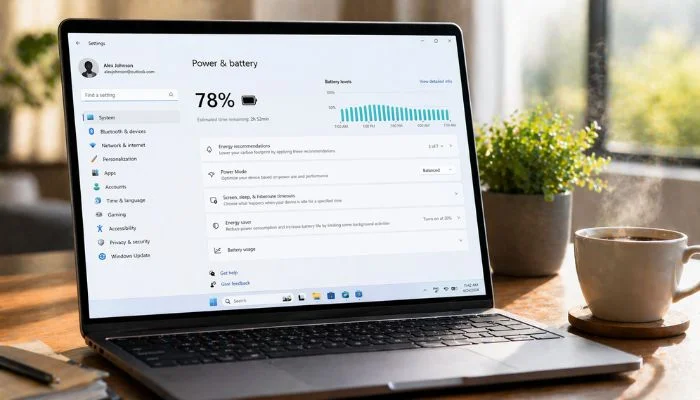
Computer going to sleep… right when you’re working?
“Wait… why does my laptop keep turning off?”
Yeah, this happens a lot.
Maybe you’re downloading something, on a Zoom call, or running a task… and suddenly your screen goes black.
Now you’re trying to stop it — but the settings aren’t obvious.
Here’s the truth:
Your computer is set to sleep automatically to save power.
But don’t worry — you can easily change that.
I’ll show you exactly how to stop your computer or laptop from going to sleep, step by step.
Key takeaways
- Your computer goes to sleep because of default power-saving settings, not a system issue.
- You can stop it by setting sleep options to “Never” in Power & battery settings.
- Make sure to update both “On battery” and “Plugged in” settings.
- You can also control sleep behavior using Control Panel → Power Options.
- If your laptop sleeps when closing the lid, change it to “Do nothing”.
- Adjusting the screen timeout prevents your display from turning off too quickly.
- Sleep mode is safe, but turning it off helps during downloads, calls, or long tasks.
- Once configured, your computer will stay awake without interrupting your work.
How to Stop Computer & Laptop from Going to Sleep (Keep Your Computer Awake)
Steps:
- Open Settings
- Go to System
- Click Power & battery
- Change sleep settings to Never
Step 1: Open Settings
Click on the Start menu and open Settings.

Step 2: Go to System
Inside Settings, click on System.
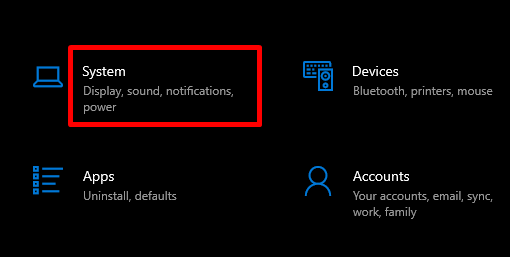
Step 3: Click Power & battery
Scroll and click Power & battery.
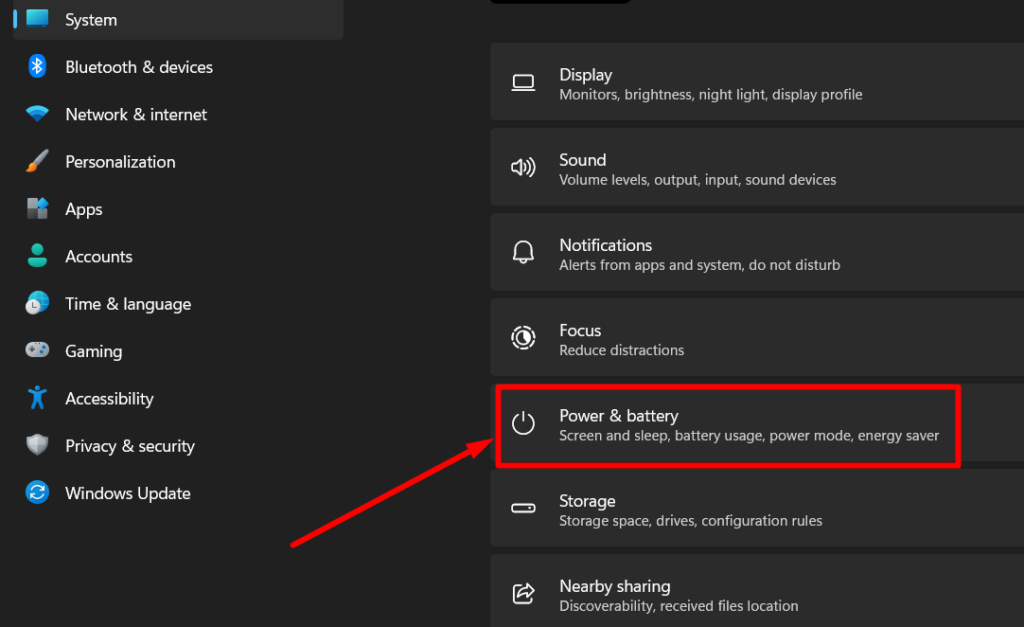
Step 4: Change sleep settings
Under “Screen, sleep, & hibernate timeouts”:
- In the Plugged in section:
Set “Make my device sleep after” → Never - In the On battery section:
Set “Make my device sleep after” → Never (or a longer time)
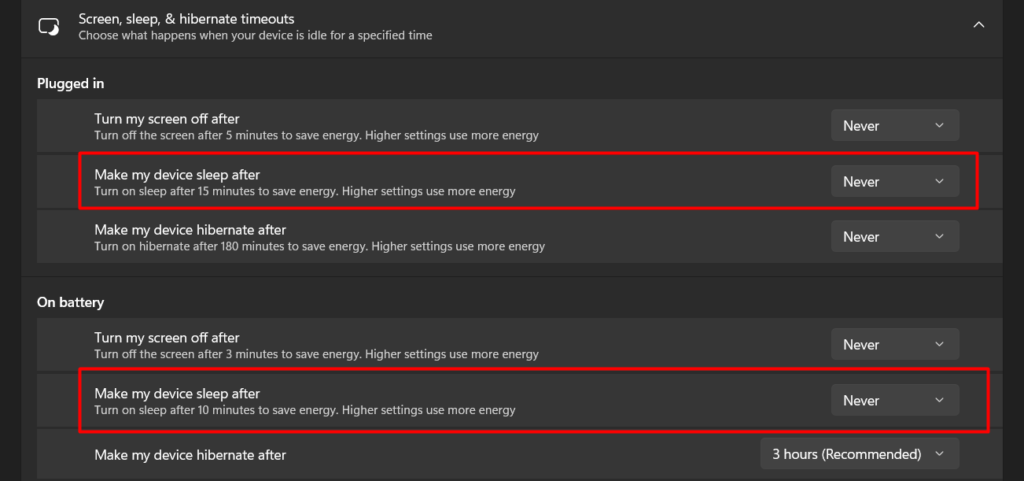
(Optional but recommended):
- Also set “Turn my screen off after” → Never if you don’t want the display turning off
That’s it. Your computer will stay awake.
Why Does My Computer Keep Going to Sleep
Your computer is designed to save power.
It goes to sleep when:
- You’re inactive for a while
- Battery is low
- Power settings are set to short time
Example: If sleep is set to 5 minutes, your PC will sleep even during downloads.
📖 You May Also Like This “Laptop/PC” Article: What Is a Refurbished Laptop? Is It Worth Buying?
What Does Sleep Mode Do on PC/Laptop
Sleep mode:
- Pauses your work
- Keeps apps open
- Uses very low power
So when you wake it up, everything comes back instantly.
How to Turn Off Sleep Mode on PC
You already saw the main method above.
Another way:
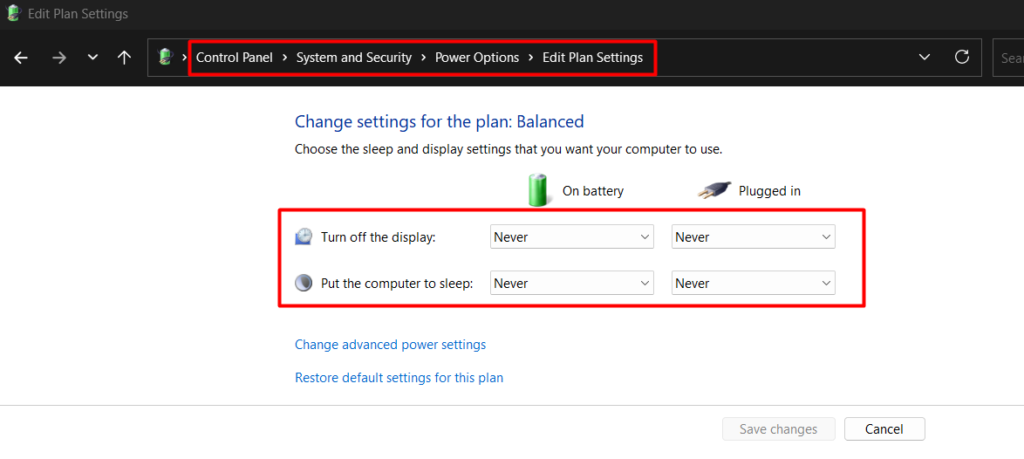
- Go to Control Panel → System and Security → Power Options
- Click Change plan settings
- Set sleep to Never
Is It Better to Shut Down or Sleep PC
It depends on how you use your computer.
Use Sleep if:
- You’ll come back soon
- You want fast resume
Use Shutdown if:
- You’re done for the day
- You want to save power
Sleep or Shutdown PC Overnight
- Sleep → uses a little power
- Shutdown → saves more power
Best choice: Shutdown overnight
Difference Between Sleep and Hibernate on Laptop/PC
Here’s the simple difference:
- Sleep → saves data in RAM (fast wake)
- Hibernate → saves data to disk (no power used)
Hibernate is slower but saves battery.
How to Stop Laptop from Sleeping When Closing the Lid
Sometimes your laptop sleeps when you close it.
Steps:
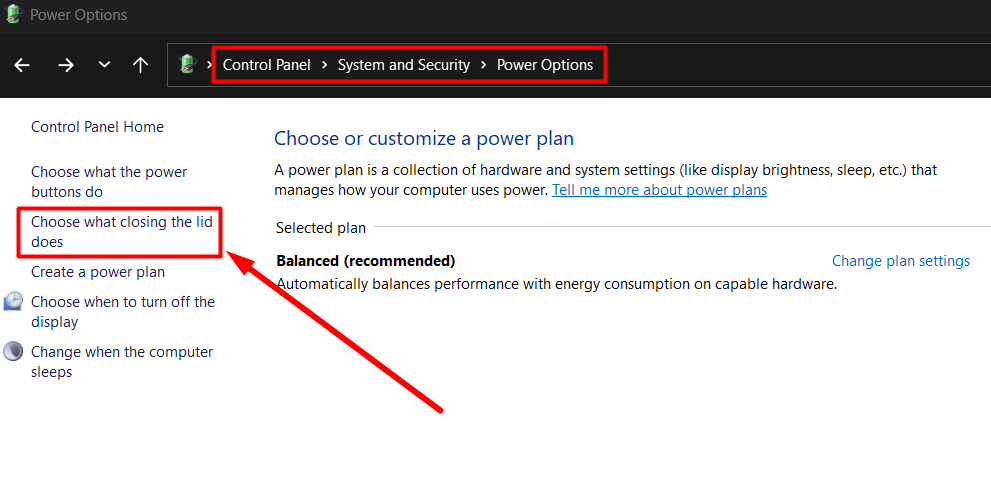
- Open Control Panel
- Go to Power Options
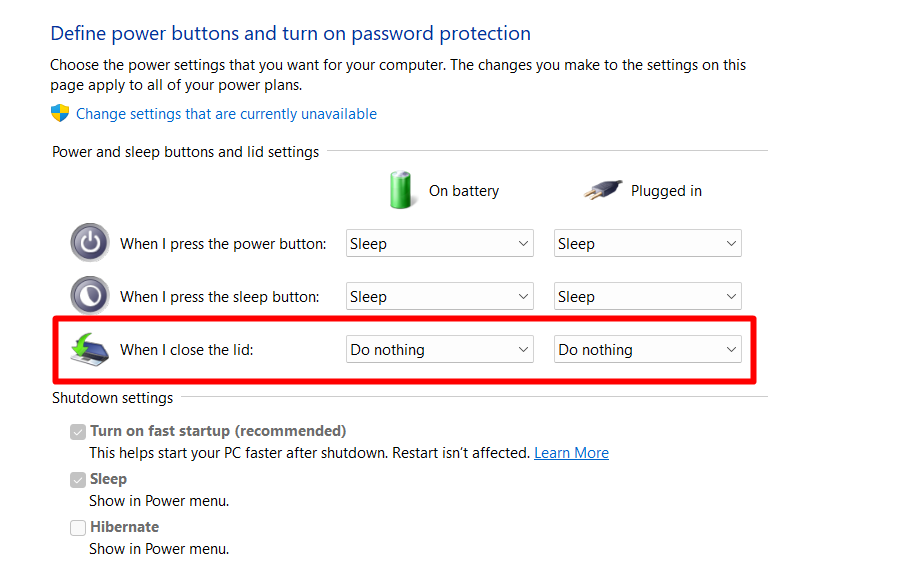
- Click “Choose what closing the lid does”
- Set it to Do nothing
📖 You May Also Like This “Laptop/PC” Article: Why Does My Computer (PC) Keep Crashing
How to Keep Monitor from Going to Sleep
Your screen may turn off even if the PC is awake.
Fix:
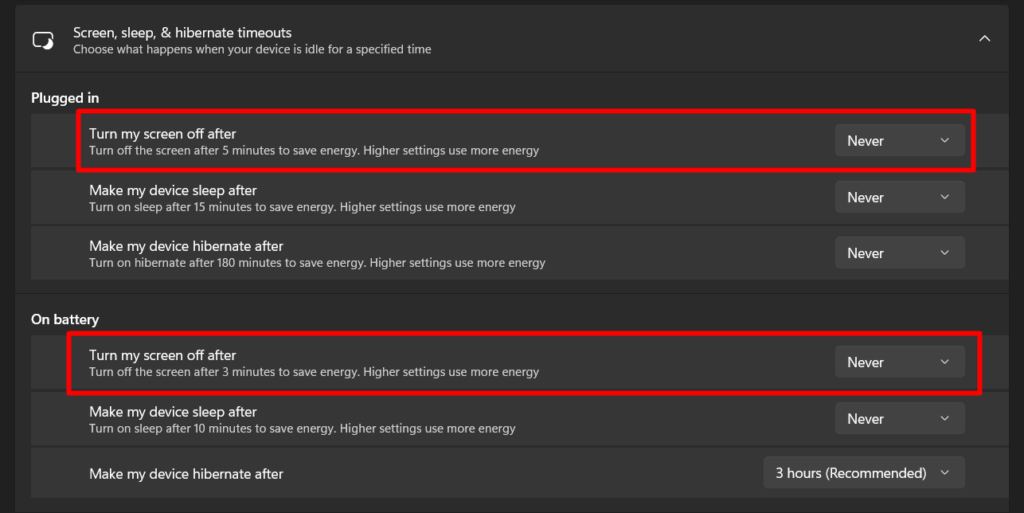
- Go to Power settings
- Change Screen timeout to longer time or Never
How to Keep Laptop Active When Working from Home
If you work remotely, sleep mode can break sessions.
Here’s what helps:
- Set sleep to Never
- Keep laptop plugged in
- Increase screen timeout
Example: During a Zoom call or remote login, sleep can disconnect you.
How to Make Your Computer Stay On Longer
If you don’t want “Never,” just increase time.
- Set sleep to 30 mins / 1 hour
- Adjust based on your work
Quick Checklist (Fix It Fast)
If your computer still sleeps:
- Did you set sleep to Never?
- Did you check both the battery and if it was plugged in?
- Did you change the screen timeout?
- Did you check lid close settings?
One of these usually fixes it.
FAQs
How do I get my PC off sleep mode?
Press any key, move your mouse, or press the power button.
How do I make my computer sleep with the keyboard?
Press Windows + X → U → S (on Windows).
Is sleep mode bad for a PC?
No. It’s safe and designed to save power.
Why is my computer not waking up after going to sleep in Windows 11?
Try pressing the power button. If not, restart your PC.
Where is the sleep button on my laptop?
Most laptops don’t have a dedicated button. Use the power menu instead.
How to keep a laptop active when working from home?
Set sleep to Never and increase screen timeout.
How to keep the monitor from going to sleep?
Change screen timeout in Power settings.
How to make your computer stay on longer?
Increase the sleep timer or set it to Never.
Final Thoughts
Your computer sleeping isn’t a bug—it’s just a setting.
Once you adjust it, you won’t deal with interruptions again.
Use:
- “Never” for uninterrupted work
- Custom time for balance
That’s all you need