

You created a Google Form… responses are coming in…
But you’re not getting notified.
Now you’re thinking:
“Does Google Form send email when submitted?”
Yes, it does.
But here’s the problem — it’s not turned on by default.
So if you don’t enable it, you’ll keep missing new responses.
Let me show you exactly how to fix this (step-by-step).
Key Takeaways
- Yes, Google Forms can send email notifications for each response — but you have to enable it manually
- You can get notified for new responses instantly from inside the Responses tab
- By default, emails do not include full answers, only a notification
- To send notifications to multiple emails, you need collaborators or add-ons
- You can also set up automatic emails to respondents using add-ons
- If notifications are not working, it’s usually a settings issue, not a bug
How to Turn On Email Notifications for Google Forms
This is the basic setup.
It takes less than a minute.
Step 1: Open your Google Form
Go to the Google Form where you want to receive notifications. Make sure you’re logged into the correct Google account (the one that owns the form).
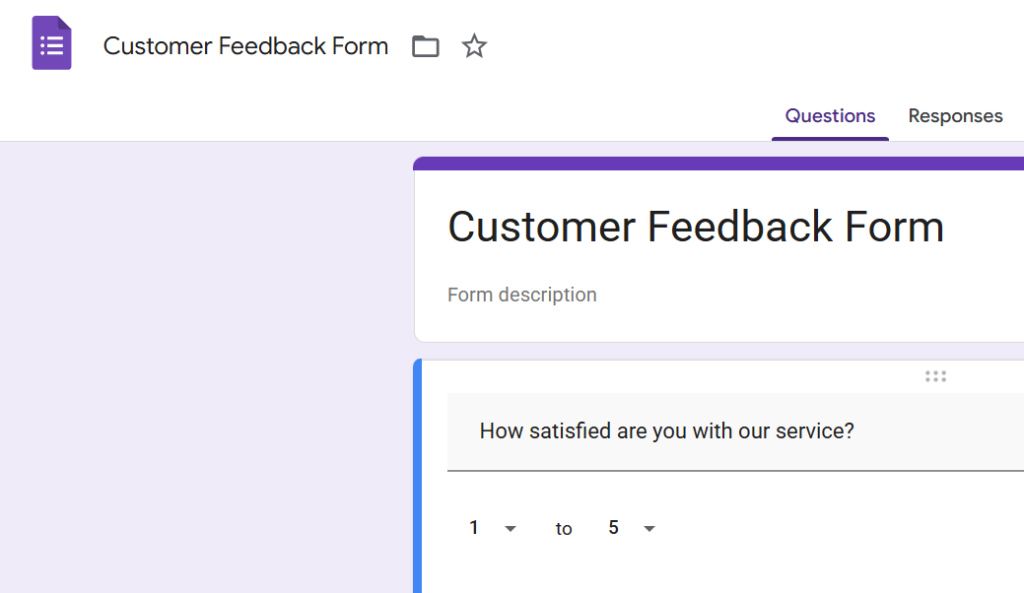
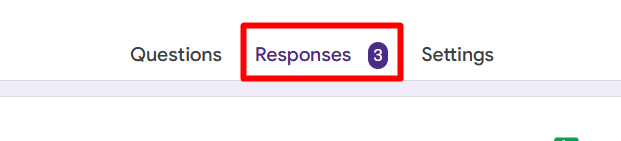
Step 2: Click on the Responses tab
At the top of the form, you’ll see tabs like Questions, Responses, and Settings. Click on Responses to access all incoming submissions.
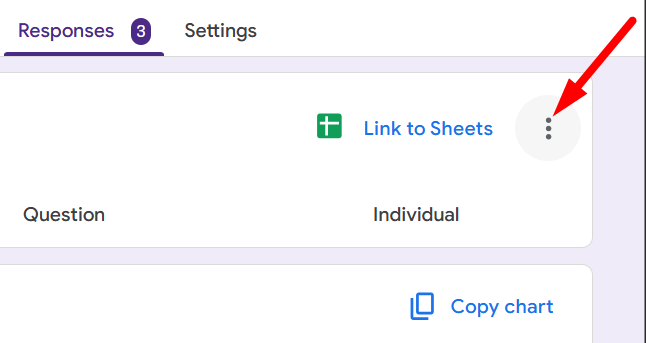
Step 3: Click on the three-dot (⋮) icon in the top right
Inside the Responses tab, look at the top-right corner. You’ll see a three-dot menu. Click on it to open additional options.
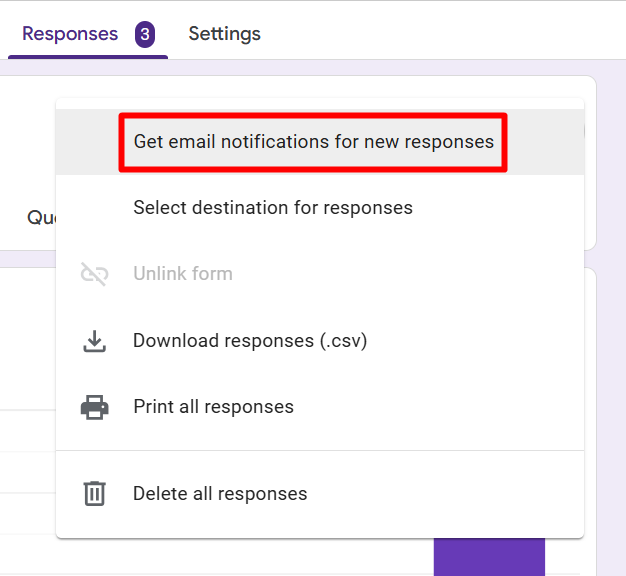
Step 4: Click on “Get email notifications for new responses”
From the dropdown, select this option. Once enabled, Google Forms will automatically notify you for each response submitted.
That’s it.
Now you’ll get an email for each response submitted.
📖 You May Also Like This “Google Form” Article: How to Print a Google Form (Step-by-Step Guide)
That’s it.
Now you’ll get an email for each response submitted.
What Actually Happens After You Enable It
Once turned on:
- You’ll receive an email every time someone submits the form
- The email will say something like:
“1 new response”
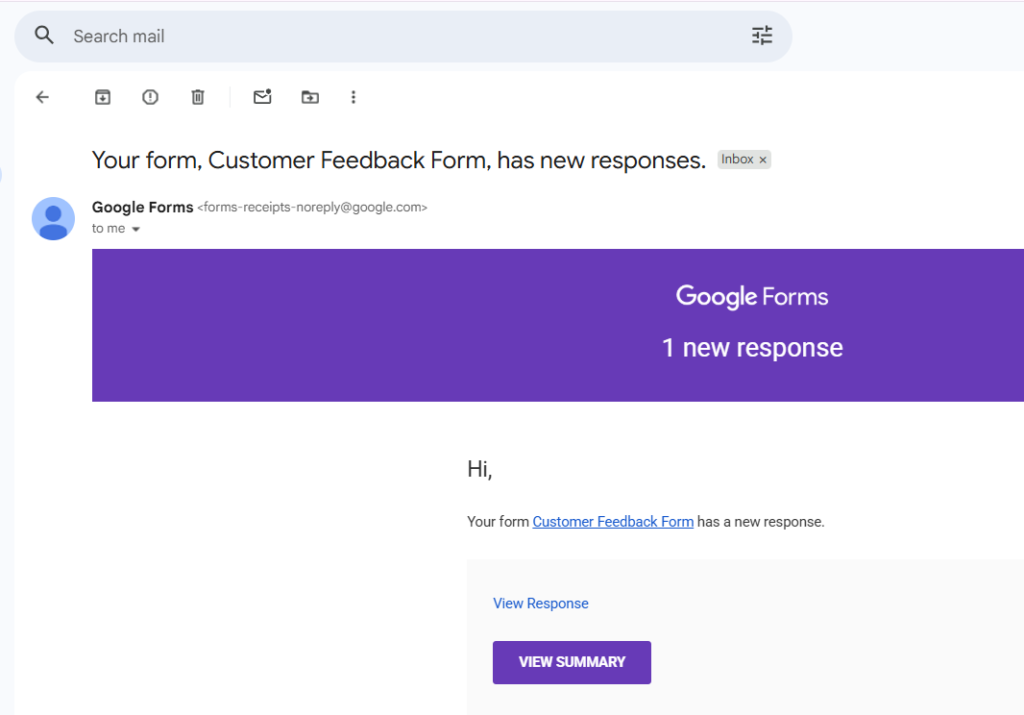
- You’ll need to click the link to view full answers inside Google Forms
Important: Google Forms does not send full response data in the email
Are Google Forms Send Responses to Email?
This is where most people get confused.
They expect:
“I want all answers directly in my email”
But Google Forms only sends a notification, not the full response.
So what can you do?
You have 2 options:
Option 1: Use default notifications (basic)
- You get notified
- Then you open the form to check responses
Option 2: Use an add-on (advanced)
- Sends full answers inside the email
- More control over formatting
Can Google Form Send Notification to Multiple Emails?
The answer is Yes.
By default, only the form owner gets notified.
So if you want your team to get emails too, here’s what to do:
- Open your form
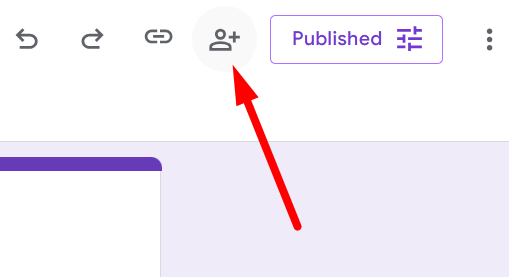
- Click on the share icon on the top right of the form.
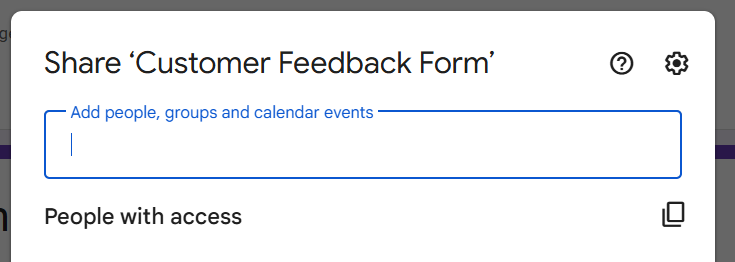
- A pop-up will appear. In the pop-up, enter the email addresses of those you want to receive email notifications
- Ask them to enable notifications from their side
Each person must turn on notifications manually.
Google Forms Automatic Email
Now let’s talk about automation.
You might want:
- Send confirmation email to users
- Notify team instantly
- Send different emails based on answers
Google Forms alone can’t fully do this.
Solution: Use add-ons
Here’s how:
- Open your form
- Click on the three-dot (⋮) menu on the top. A dropdown will appear. From the dropdown, click on “Get add-ons”.
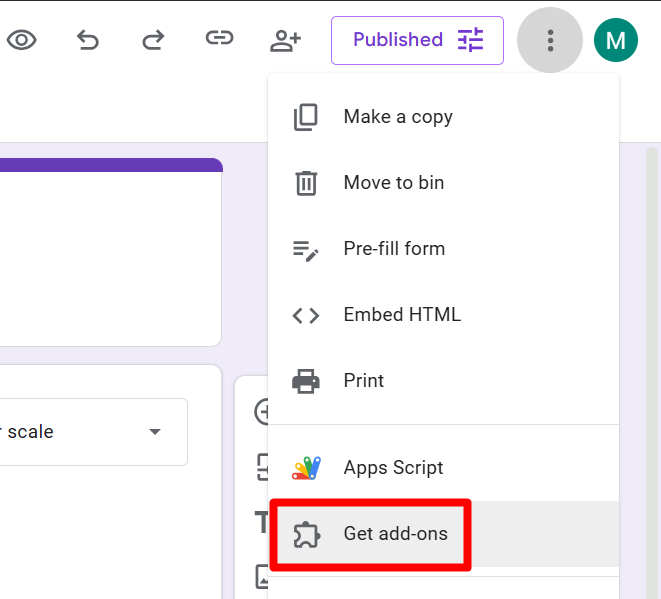
- Search for an email notification add-on in the Google Workspace Marketplace. I am using “Email Notifications for Google Forms”.
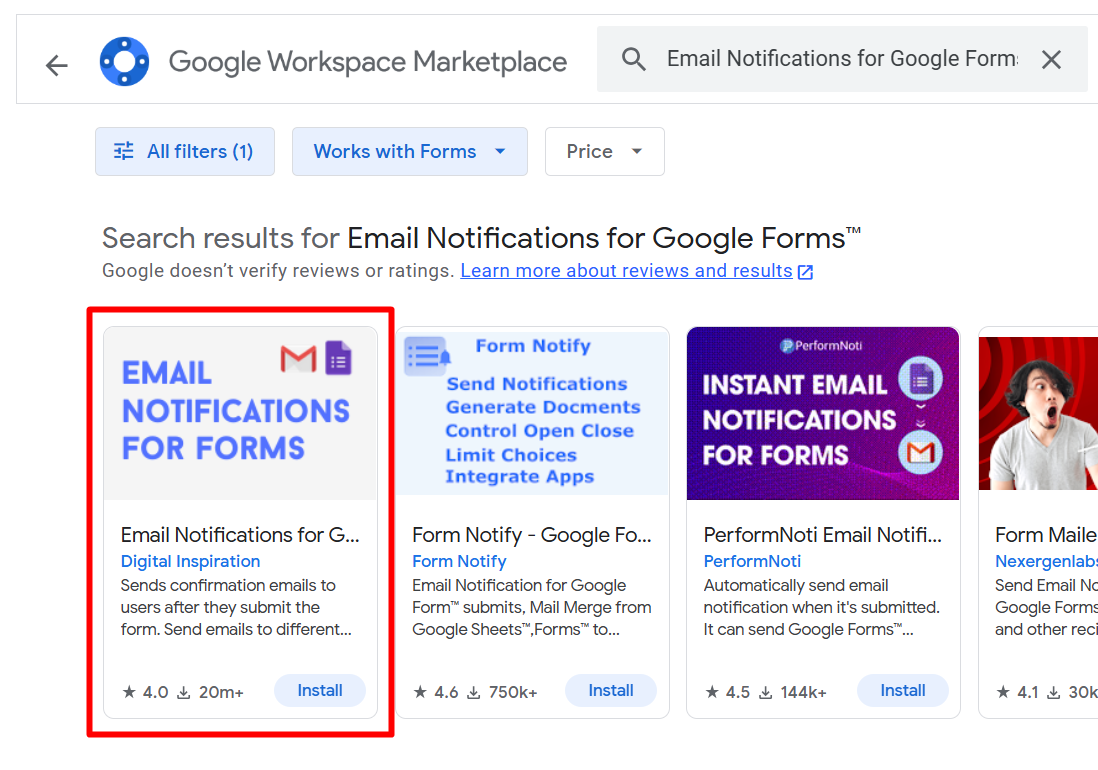
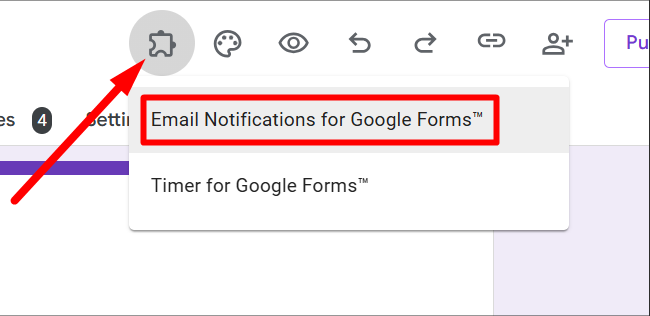
- Click on Install to Install the tool. Then on the top of the form, click on the Add-ons (puzzle icon) and then click on the “Email Notifications for Google Forms”.
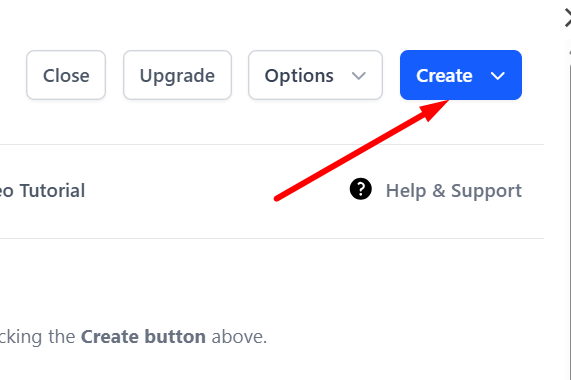
- Open it and click Create
- Set:
- Email recipients
- Subject line
- Message body
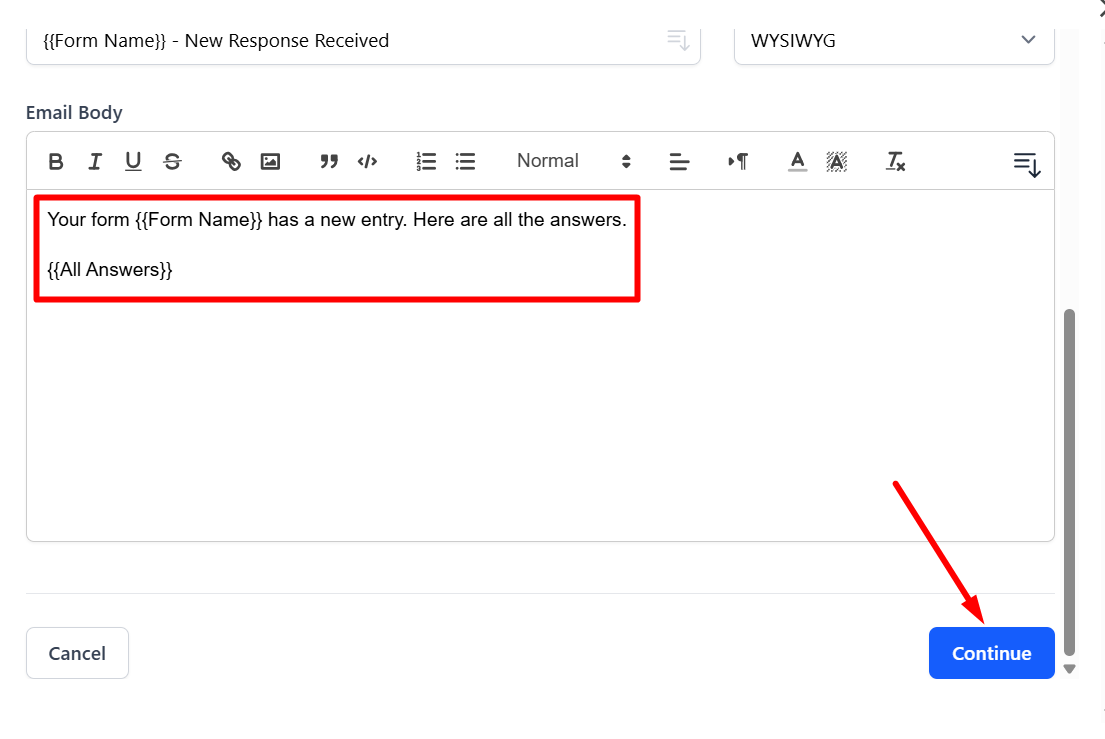
- Save and activate
📖 You May Also Like This “Google Form” Article: How to See Google Forms You Submitted (5 Easy Ways)
What You Can Do With Automatic Emails:
- Send email to respondent after submission
- Include all answers in the email
- Add edit response link
- Notify different people based on form answers
This is where Google Forms becomes much more powerful.
When Email Notifications Don’t Work
If you’re not getting emails, check this:
- Did you enable notifications in the Responses tab?
- Are you checking the correct email account?
- Check Spam / Promotions folder
- Are responses actually coming in?
Most of the time, it’s just a missed setting.
Simple Example (Real Use Case)
Let’s say you run a small business.
You create a form for customer inquiries.
Without notifications:
- You have to manually check responses
With notifications:
- You get an email instantly
- You can reply faster
- You don’t miss leads
That’s the real value — speed and visibility
Final Thoughts
If you’re using Google Forms seriously, email notifications are a must.
Without them:
- You miss responses
- You respond late
- You lose opportunities
With them:
- You get notified instantly
- You stay on top of every submission
Start with the basic setup.
Then move to automation if needed.